Remote Lock for Windows Devices in Intune Now in Preview
- Blesslin Rinu
- 653 views
Intune's remote lock for Windows is in preview. It locks a device without wiping it, but you configure it through a custom OMA-URI policy, not a button.
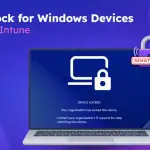
When a laptop goes missing, the usual options are both bad. Leave the device reachable and you risk exposing data. Wipe it and you lose the data even if it turns up later. Remote lock gives admins a middle path, and Microsoft has now added it for Windows devices in Intune, currently in preview.
Remote lock already exists for Android and macOS. For Windows, though, the feature works differently enough that you can't just follow the same steps. My read is that anyone planning to use it should treat it as a configuration exercise with its own unlock workflow, not a one-click action.
How Windows differs from Android and macOS
On Android and macOS, you go to Devices > Select a device > Security > Remote lock in the Intune admin center. The user then regains access with their device password.
Windows has no equivalent option in the admin center. You use an Intune configuration policy to set the lock state. The bigger change is on the way back in. A locked Windows device won't accept the user's PIN, password, or administrator credentials. Restoring access means deploying a separate unlock policy through Intune. That's the part that will catch teams out if they don't plan for it before an incident.
Requirements and platform scope
Devices need to run Windows Pro, Enterprise, or Education. They also need to be Microsoft Entra joined, Microsoft Entra hybrid joined, or MDM-enrolled.
The platform list is a little muddled. Microsoft's documentation names Windows 10 and Windows Server 2016, 2019, and 2022 as applicable. The preview announcement, however, specifically identifies Windows 11 Insider Preview Build 29708.1001. If you're scoping a pilot, confirm the supported builds against the current documentation for your fleet before you assume a given Windows version will behave the same way.
Building the remote lock policy
Start by creating a device group that holds the Windows devices you want to be able to lock. Then build the policy:
- Sign in to the Microsoft Intune admin center.
- Go to Devices > Monitor > By Platform > Windows.
- Under Manage devices, select Configuration > Create, then choose New Policy.
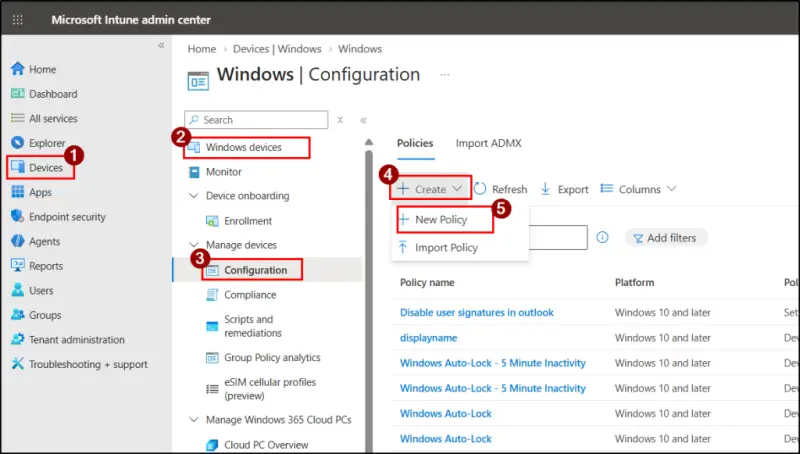
- Set Platform to Windows 10 and later and Profile type to Templates > Custom, then click Create.
- Name the policy, for example Remote lock for Windows devices, and click Next.
- Under Configuration Settings, click Add and set up the OMA-URI settings below.
Setting Name Description OMA-URI Data Type Value Lock state (Required) Determines whether the Windows device should be locked or unlocked. ./Device/Vendor/MSFT/RemoteDeviceLock/LockState Integer 1 Lock reason (Optional) Displays the reason for locking the device on its lock screen. Supports up to 1,024 characters. ./Device/Vendor/MSFT/RemoteDeviceLock/LockReason String <Your lock reason> Recovery hint (Optional) Displays recovery information, such as help desk contact details, on the lock screen. Supports up to 256 characters. ./Device/Vendor/MSFT/RemoteDeviceLock/RecoveryHint String <Help desk contact details> 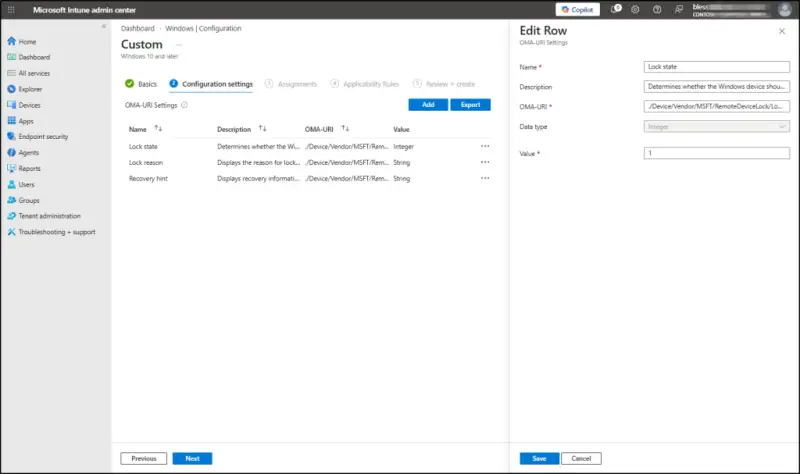
- Under Assignments, add the device group.
- Optionally configure Applicability Rules, then click Next.
- Review and click Create. The policy applies at the device's next Intune check-in.
The key setting is Lock state with a value of 1. When a device is misplaced or a security concern comes up, adding it to the assigned group is the trigger. Nothing else is needed on the device, and it locks at its next check-in. That makes the group membership the real control point, so keep it tightly managed.
Unlocking a device
When the incident is closed and the device is confirmed safe, you restore access with a second policy. It uses the same OMA-URI setting, with Lock state set to 0. Assign it to the group that needs access back.
Check group membership before you deploy. Devices still in a group targeted by the original lock policy will get conflicting instructions. Remove them from that group first. Once the unlock policy arrives at check-in, the lock lifts and the user can sign in again.
What the user sees
When the lock applies, the device behaves in a few distinct ways:
- Active sessions end. Whoever is using the device is signed out.
- Sign-in is restricted. The normal sign-in options are unavailable, and a lock screen shows the lock reason and recovery hint from the policy.
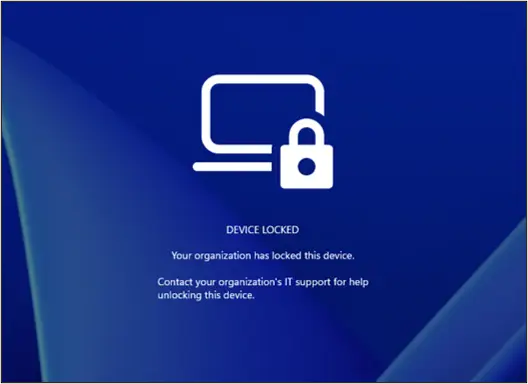
- Data stays put. Files and personal data remain on the device. Nothing is wiped.
- Protection continues. BitLocker stays active, and Intune enrollment is unchanged.
- The lock persists. Restarts and network disconnects don't clear it.
- Only admins can lift it. Access comes back only when the unlock policy reaches the device.
Limits to plan around
Locking the sign-in screen isn't the same as making the device inaccessible. Several gaps remain, and they're the reason remote lock should sit alongside other controls rather than replace them.
- The user account stays live. Remote lock doesn't disable the Microsoft Entra ID account or revoke existing sessions. Use Entra ID controls to block the account or revoke sessions where needed.
- The device stays online. A lock doesn't cut network access or erase content. If you need either, use other Intune security actions.
- Recovery paths remain open. Windows Recovery Environment, Safe Mode, and booting from external media are still reachable. BitLocker is what protects data against offline access or a removed disk, so keep it enabled.
- There's no local or offline unlock. PIN, password, local administrator credentials, and web sign-in won't open the device. Only the Intune unlock policy will.
For most teams, the practical takeaway is simple. Remote lock fills a gap between doing nothing and wiping, and it keeps data intact for recovery. Before you rely on it, though, run a pilot group through a full lock-and-unlock cycle, document who can add devices to the lock group, and make sure your help desk knows the recovery hint text. Expect it to change while it's in preview.