SharePoint Sharing Links Report: Finding Oversharing Before It Becomes a Problem
- Gregory Zelfond
- 568 views
SharePoint Advanced Management's Sharing Links Report surfaces Anyone and external links across sites. Here's how to run it and act on the results.
Until recently, SharePoint admins had little native visibility into what users were sharing. If you wanted that picture, you usually bought a third-party governance tool. Now the SharePoint Advanced Management module includes a built-in report that shows where links exist and who they reach. The report is called the Sharing Links Report, and it's the fastest way I know to find the Anyone links that quietly outlive the projects they were created for.
The gap it closes is real. A confidential file shared years ago through an Anyone link can still be live today, and nobody on the current team may even know it exists. If you're planning for Copilot in your tenant, that's the kind of exposure you want to find first, because Copilot works with content the user already has access to.
Enabling and running the report
Access starts in the Microsoft 365 admin center. The steps below follow the path described in the source material.
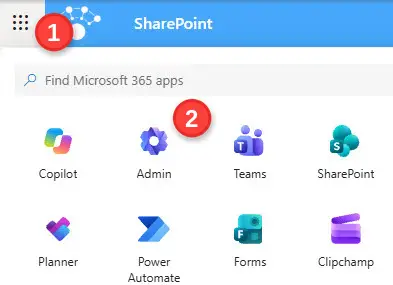
- Open the Microsoft 365 Admin Center.
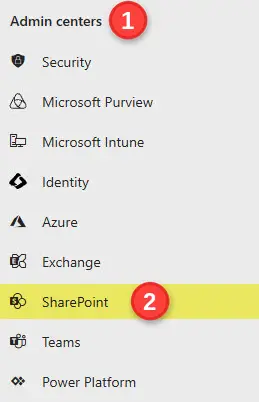
- Under Admin centers, select SharePoint.
- Under Reports, open Data access governance, then select View reports under Sharing links.
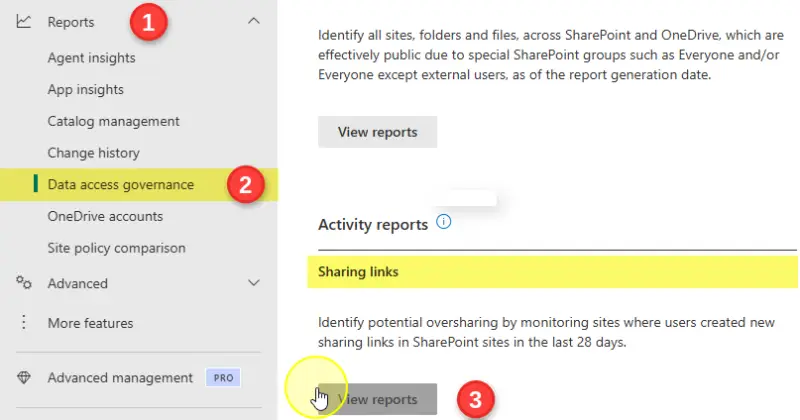
- On first use, click Enable data collection. Data is recorded only from that point forward, so nothing appears retroactively.
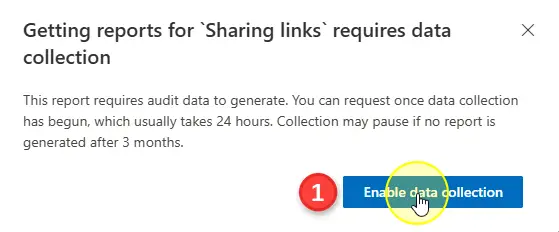
- Wait at least 24 hours before generating anything.
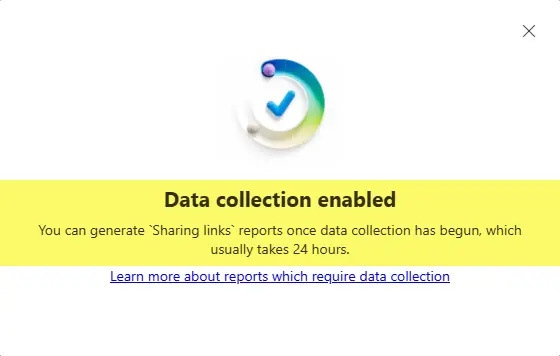
- After that window, return to the page and click View reports.
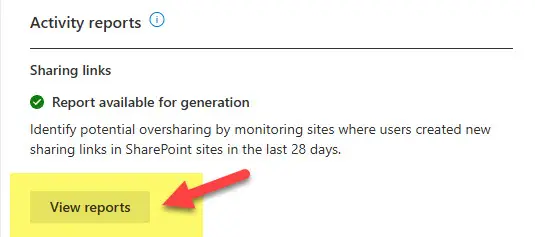
- Three reports are available: 'Anyone' links, 'People in your organization' links, and 'Specific people' links shared externally. Run them one at a time or select all three with Run all.
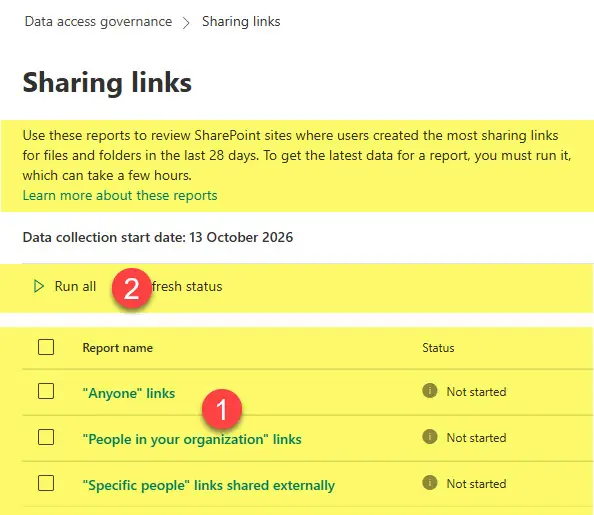
- Generation is slower than the interface suggests. It says it might take a few hours, but one hands-on run took 24 to 48 hours.
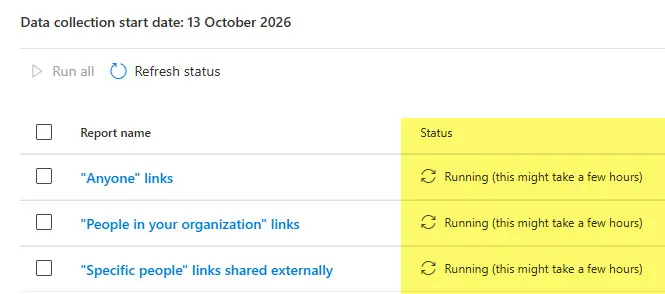
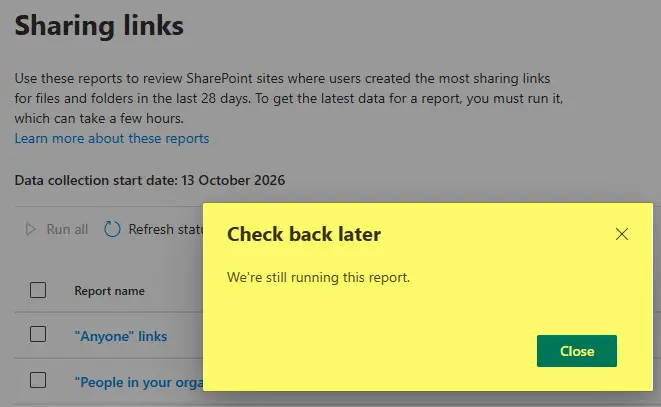
- When the report is ready, click its name to open it.
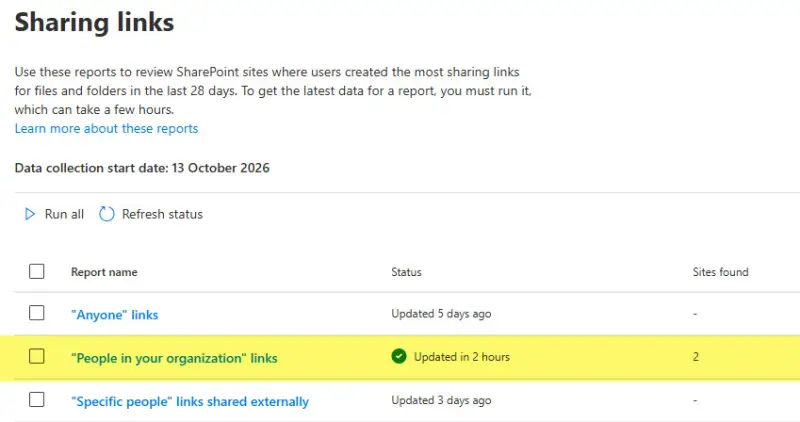
- The summary shows the top 100 sites with that link type. For the full list, click Download detailed report to get a CSV.
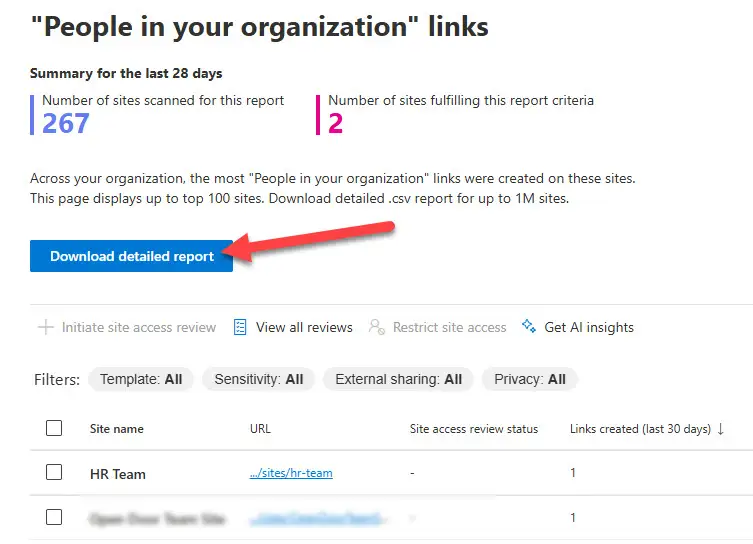
Three ways to act on what the report shows
Finding links is the easy half. The report gives you three remediation paths, and they differ mainly in how much you trust the site owner to act.
Option 1: Start a site access review
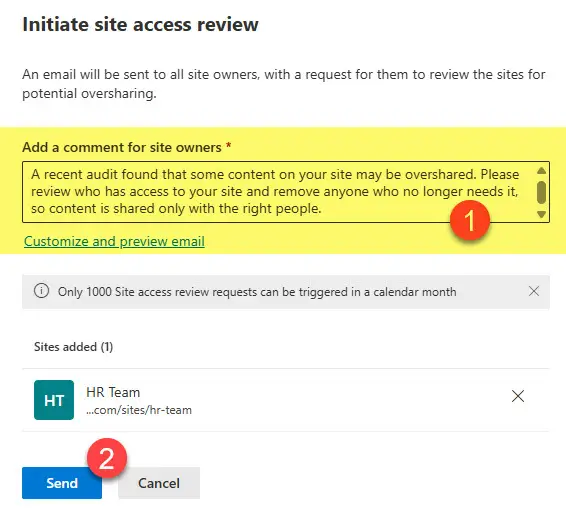
This is the option I'd reach for first, because the workflow is built into the report and it keeps site owners responsible for their own content. You pick a site and click Initiate site access review, then add context in the comments and click Send.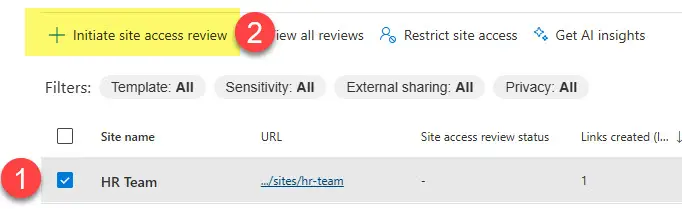
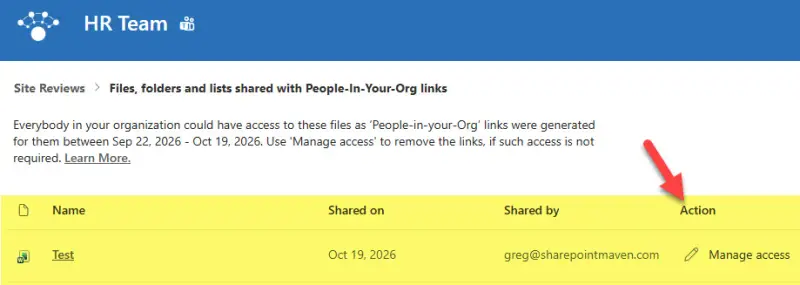
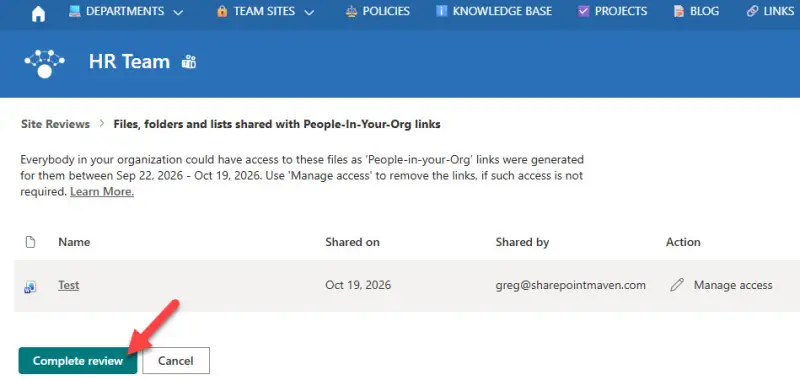
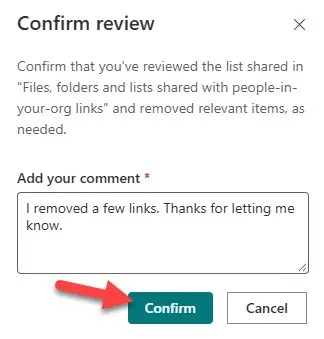
The site owner receives a formal email with a View all created links button.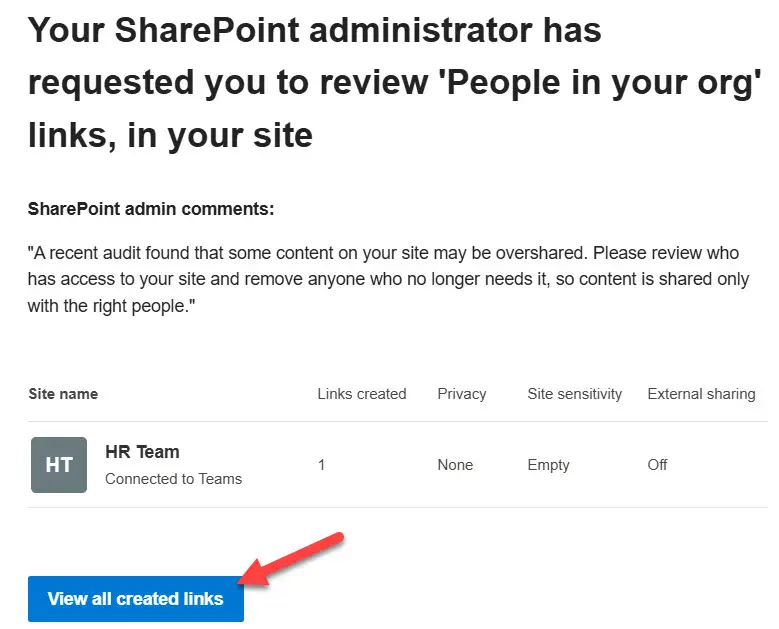 From there they can see the links they manage, remove or change access, and then select Complete review. They have to add resolution comments before the review closes, which leaves a record of what was changed and why.
Option 2: Restrict site access
Sometimes you can't wait on an owner. Restrict site access is the faster lever. You can apply it from the Active Sites list, and the report interface offers the same action. Check the box next to the site, click Restrict site access, and confirm.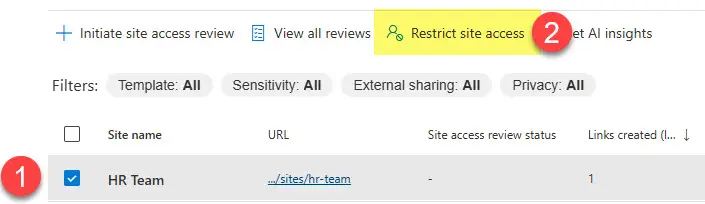
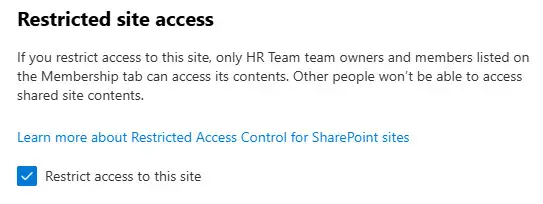
That speed is the trade-off. A restriction hits everyone using the site, not just the links you're worried about, so reserve it for sites where the exposure is serious and the owner can't be reached in time.
Option 3: Tighten sharing settings so the problem stops recurring
The first two options clean up existing exposure. Without changes to sharing settings, the same pattern returns next month. For the sites the report flagged, consider:
- Setting an expiration on Anyone links so they stop working on a schedule rather than indefinitely.
- Changing the default sharing link to Specific people, at the tenant or site level, so new links don't default to broad access.
- Disabling external sharing for the site where content shouldn't leave the organisation, or limiting it rather than turning it off everywhere.
Limits to plan around
The report is useful, but it has boundaries that affect how you read the results.
- You need the SharePoint Administrator role and a SharePoint Advanced Management (SAM) license assigned to your account.
- Data collection has to be turned on before anything appears. Until then, the report is empty, so turn it on early rather than during an audit.
- Site owners can't see the Sharing Links Report. They can only check sharing on their own site, which is why the site access review is the channel that reaches them.
- The report is a point-in-time snapshot covering 28 days at most. It counts links created in that window, not every link that exists. An Anyone link created three years ago won't appear.
That last limit matters most. For the full picture, pair this report with the Site permissions across your organization report, which covers standing access rather than recent link creation. Here's the thing: a clean Sharing Links Report over 28 days doesn't mean your tenant is clean. It means nothing new was created in that window that the report can see. Run the report on a schedule, keep the tighter default sharing settings in place, and treat the old Anyone links as the backlog they are.