PIM for App Roles Brings Just-in-Time Access to Entra Application Permissions
- Kavya
- 456 views
Microsoft Entra PIM for App Roles (Preview) lets admins make application role assignments eligible rather than permanently active. Here's what it supports and how to set it up.
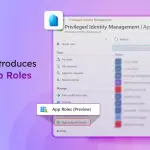
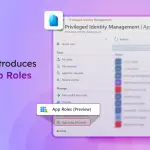
Privileged Identity Management has covered directory roles and group memberships for a while. Application roles inside enterprise apps have mostly sat outside that model, which means a dormant admin permission in a line-of-business app can stay live for months. Microsoft is now extending PIM to those roles through a preview called PIM for App Roles, and it's worth a look if you run business applications that rely on app role assignments.
Why standing app permissions matter
Take an employee who needs an Admin role in a business application only a few times a year. The permission stays active between those moments. If that account is compromised, the attacker inherits the application's admin rights just as the legitimate user would. Removing standing access is the whole point of just-in-time models, and app roles have been a gap in that approach.
App roles define what an identity can do inside an application, such as Admin, Approver or Reader. Admins assign them to users, groups or other applications. When someone signs in, Microsoft Entra ID places the assigned role in the token, and the application uses that claim to decide what to permit. Until now, those assignments stayed in place until an admin removed them by hand.
What the preview supports
With PIM for App Roles, admins can make an assignment eligible instead of active. The preview covers the following:
| Capability | Supported options |
| Assignment type | Eligible or Active |
| Supported identities | Users, groups, enterprise applications, agent blueprint principals, and agent identities |
| Assignment duration | Permanent or time-bound |
| Management actions | Add assignments, Activation control, Extend, Delete, Settings, and Export |
The agent-related entries are the ones to read twice. Microsoft has extended role assignment management to agent blueprint principals and agent identities, but it hasn't explained how these non-interactive identities would activate an eligible role. Until that's documented, I wouldn't build agent workflows around eligible app roles.
PIM for Groups versus PIM for App Roles
Before this preview, the workaround was PIM for Groups. Consider an application with Reader and Admin roles. To give just-in-time access to Admin, you would create one group for Reader users with active membership, create a second group for Admin users, assign each application role to its matching group, and then onboard the privileged group to PIM for Groups with eligible membership. A user activates their group membership when they need admin rights.
That works, but it adds a layer of group management you may not want. Every privileged role in every application needs its own group, and those groups need upkeep. PIM for App Roles lets you create an eligible assignment directly against the application's role, which removes the intermediary groups. The trade-off is maturity: the group-based pattern is well understood, and the app role version is still in preview.
Configuring the preview
You need Microsoft Entra ID Governance licensing and an application with app roles already defined. The steps below follow the admin center flow described in the source material.
Step 1: Find PIM for App Roles
Sign in to the Microsoft Entra admin center, go to ID Governance > Privileged Identity Management, and select App Roles (Preview). The page lists the applications in your tenant.
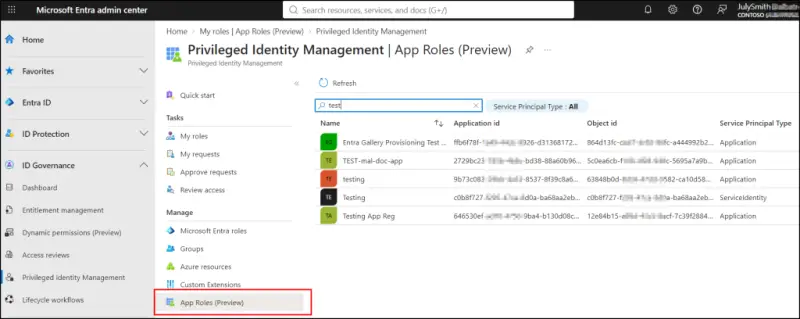
Step 2: Set activation requirements
Configure activation rules before you assign anything. Search for the application, select Settings under Manage, choose the app role, and select Edit. The options are:
- Activation maximum duration (hours): how long the role stays active after activation.
- On activation, require: additional authentication at activation.
- Require justification / ticket information on activation: users must give a reason or ticket reference.
- Require approval to activate: requests route to approvers.
- Allow permanent eligible assignment: turn this off if eligibility should expire.
For high-privilege roles, I'd turn on additional authentication and approval from the start rather than tightening later.
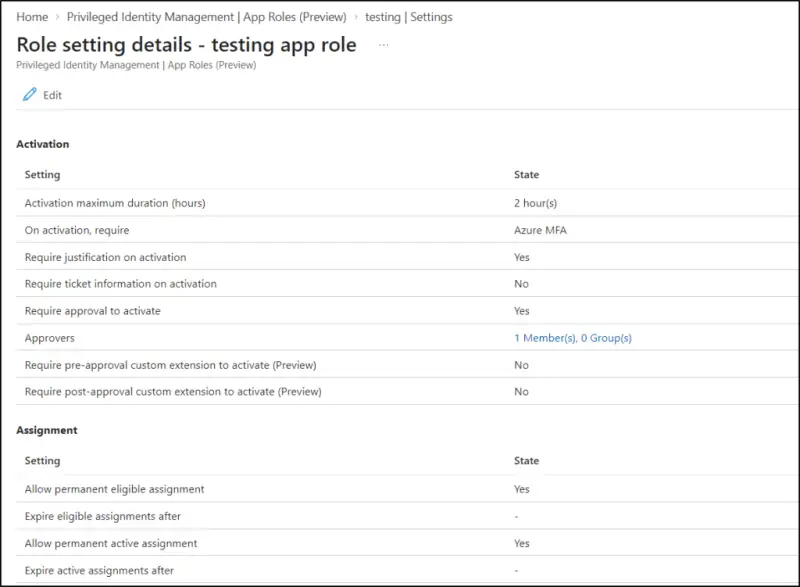
Step 3: Add the assignment
Select Assignments (Preview) and click Add assignments. On the Membership tab, choose Select role, pick the application role, then choose Select member(s). Identities can be users, groups, enterprise applications, agent blueprint principals, agents' user accounts and agent identities.
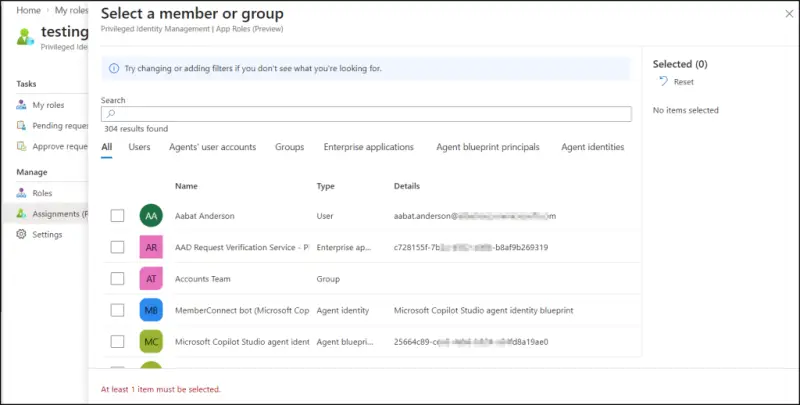
Step 4: Choose eligible or active
On the Setting tab, pick Eligible or Active under Assignment type. Eligible is the choice if you want to stop the role running continuously. Permanently eligible is on by default, so the identity stays eligible with no end date. To expire eligibility, clear that box and set start and end dates.
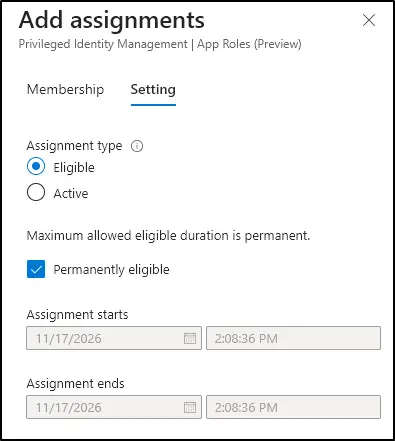
Steps 5 and 6: Review and activate
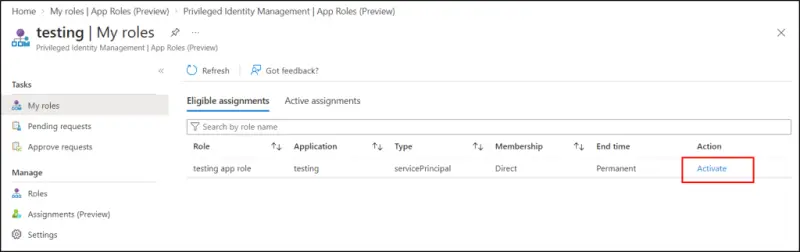
After creation, the Eligible Assignments tab shows the role, the application scope and the membership type, such as Direct. You can extend, delete or export assignments from the same page. Eligible users activate the role from My roles, under App Roles (Preview), using the Eligible assignments tab and the Activate button. Once active, the role moves to the Active assignments tab, and users can deactivate it when they're finished.
Before you move production roles
Microsoft hasn't published detailed documentation covering every behaviour yet, so treat the preview with some caution. A few precautions make sense:
- Test with a non-production app. Assign an eligible role to a test identity and confirm that activation and access removal behave as you expect.
- Keep a recovery path. Retain at least one active assignment to the application's admin role, so the app stays manageable if activation fails during the preview.
- Check SCIM provisioning. Microsoft hasn't documented whether app role activation triggers SCIM provisioning. For SCIM-dependent applications, PIM for Groups is the safer option for now.
Application roles can gate sensitive data, configuration and critical operations, so the payoff is real. The practical benefit is that privileged app access no longer needs a helper group for every role. Once the documentation catches up, I expect many teams will move their highest-risk application roles first, and the SCIM and agent questions will decide how far that migration goes.