App Intelligence Shows Which Apps Hold Too Much SharePoint Access
- Kavya
- 417 views
Microsoft's App Intelligence, introduced at Ignite 2026, flags non-Microsoft apps with broad SharePoint and OneDrive access so admins can review them first.

 The permissions problem in most tenants isn't a single bad app. It's a pile of old approvals. An integration signed off years ago can still hold tenant-wide rights when it only ever needed a handful of sites. Backup tools, AI agents and custom line-of-business apps tend to collect the same kind of surplus access over time, and nobody goes back to trim it.
The hard part has always been finding them. At Ignite 2026, Microsoft introduced App Intelligence for SharePoint and OneDrive, a capability aimed at helping admins assess non-Microsoft applications, review the evidence of what they actually do, and pick out the ones that need a closer look.
What App Intelligence actually evaluates
App Intelligence targets non-Microsoft applications that touch SharePoint and OneDrive content. That covers third-party SaaS products, custom-built apps, automation tools and agents. Rather than making admins work through permission lists and activity reports by hand, it looks at four things:
- Application permissions: whether the app has broad or tenant-wide access.
- Access type: whether it runs on app-only permissions.
- Resource reach: which SharePoint sites it can reach, including sensitive ones.
- Observed activity: whether it accessed or modified organizational content during the assessment period.
From that evidence, the tool ranks apps for review and explains why each one was flagged. Here's the thing to keep in mind: it's advisory. It doesn't revoke permissions or block anything on its own. The decision stays with you.
Running an assessment
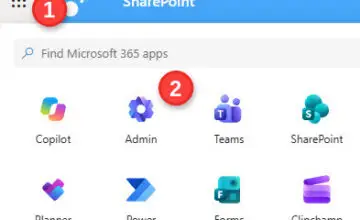
You'll find App Intelligence in the SharePoint admin center. Before you open it, though, check the data side. It draws on activity data from App Insights, a feature of SharePoint Advanced Management. App Insights needs a one-time enablement to start collecting data, keeps that data for 28 days, and pauses collection if no report has been generated for three months. If you haven't generated a report recently, expect the findings to lean on thinner evidence.
The workflow runs like this:
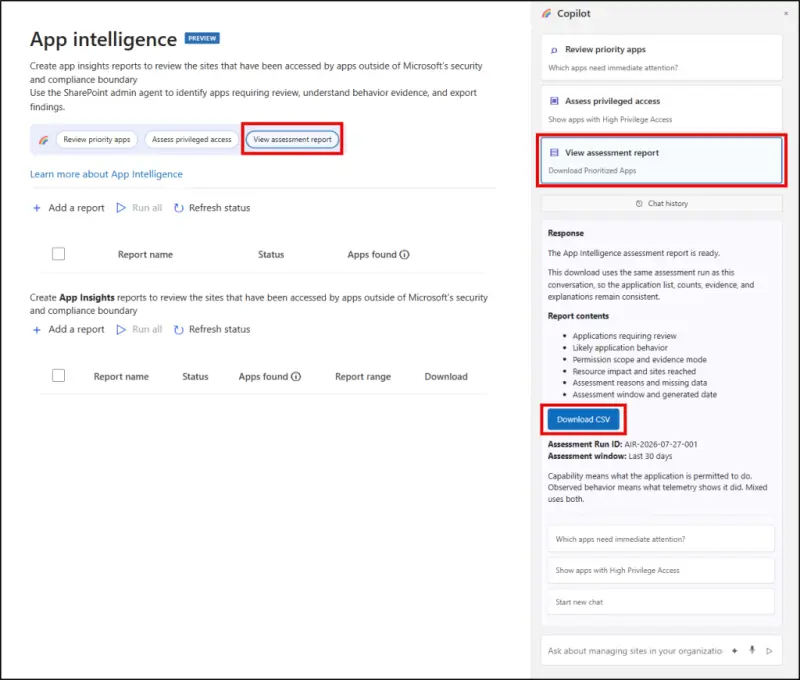
- Open the SharePoint admin center and go to App Intelligence, then open the Copilot pane.
- Pick an assessment. Review priority apps surfaces apps that may need attention and explains the flag. Assess privileged access narrows the focus to apps with broad permissions, app-only access or reach into sensitive sites.
- Go through the assessments and their supporting evidence.
- Select View assessment report to see the full results.
- Use Download CSV if you need to export the findings for further investigation.
Reading Resource Impact and Evidence Mode
Every assessment carries two labels. Resource Impact (High, Medium, Low or Needs Data) tells you where to spend your review time. Evidence Mode (Capability only, Observed behavior or Mixed) tells you whether the finding rests on what the app is permitted to do, what it has actually done, or both.
The combinations map to different actions:
- High or Medium/Low impact with Capability only: the app can reach resources, but no activity backs that up. Review its permissions and restrict what isn't needed, in priority order.
- High impact with Observed behavior or Mixed: recorded activity or combined evidence shows access across several or sensitive resources. Investigate first, confirm the business purpose and cut access that can't be justified.
- Medium or Low impact with Observed behavior or Mixed: the activity points to lower assessed impact. Confirm the app's purpose and tighten access where it makes sense.
- Needs Data (any evidence mode): the evidence is missing or stale. Check data availability and reassess once you have enough to go on.
Two apps can both land at High for different reasons. One may hold broad site permissions it never uses. The other may show recorded activity against sensitive content. Those call for different responses, which is why the supporting evidence matters as much as the label. Also, a High rating reflects review priority, not proof of malicious behavior.
What to do with a flagged app
A flag doesn't mean the app gets blocked. Start by understanding what it's for, what it's permitted to do and what it has actually done.
Talk to the owner first. The Notify App Owner option drafts an email to the app's owners asking them to explain why it needs its current access. Ask whether it's still in use and whether its permissions still fit its purpose. Plenty of over-permissioned apps turn out to be abandoned integrations, and that conversation settles it quickly.
Narrow the permissions. If an app only needs particular sites, consider moving it from broad access to the Sites.Selected permission model and granting site-level permissions where they're needed. That enforces least privilege without cutting off the business process the app supports.
Block only when there's no legitimate need. If an app has no valid reason to reach SharePoint or OneDrive content, you can add its application ID to the Application Restrictions deny list using SharePoint Online PowerShell. Microsoft's documentation shows the approach below. Test it in a non-production tenant before you touch production, and check the cmdlet syntax against the current module version.
Set-SPOTenantRestrictedAppAccessControlList -AddRestrictedAppIds <applicationId>
A few constraints matter here. The tenant deny list holds a maximum of 100 application IDs, and Microsoft first-party applications can't be added. Confirm the result with:
Get-SPOTenantRestrictedAppAccessControl
To restrict an app from specific sites rather than the whole tenant, use Set-SPOSiteRestrictedAppAccessControlList.
Adding an app to the deny list doesn't block it by itself. Nothing takes effect until tenant-wide enforcement is turned on as a separate step. Preview that step first:
Enable-SPOTenantRestrictedAppAccessControl -WhatIf
Then enable enforcement:
Enable-SPOTenantRestrictedAppAccessControl
Be careful with that second step. Turning on tenant-wide enforcement also activates any site-level Application Restrictions already marked as Enabled. Review those before you switch enforcement on, or you may break access that someone depends on.
Where to start
Begin with Review priority apps to see which applications need attention, then go through their permissions, reach and activity evidence. If an app looks over-privileged, confirm its purpose with the owner before deciding whether to narrow or block it. Regular reviews like this are one practical way to improve Microsoft 365 security and cut unnecessary exposure. My read is that the owner conversation will do more of the cleanup than any deny list entry, so budget time for it before you change anything.