Intune Preview Brings Eligible Windows Servers Into the PC Console
- Anu
- 987 views
Microsoft's Intune preview lets eligible Windows Server Insider builds enroll beside PCs. Check policy scope, scope tags and compliance rules before you pilot it.
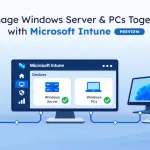
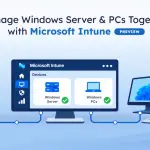 If your team runs Windows PCs in Intune but still patches and configures servers with Group Policy, scripts and Configuration Manager, you know how much friction that split creates. Microsoft's answer, shown at Ignite 2026, is a preview that extends selected Intune management workflows to eligible Windows Server devices, so one console covers both.
This is a preview with tight boundaries. It won't fit every server, and Microsoft hasn't said when it reaches general availability or what the final licensing looks like. My read is that the useful work right now is scoping a pilot, not rolling anything out.
What the preview actually adds
Intune's server support is built on the workflows endpoint admins already use. The preview covers six areas:
- Configuration: apply supported device settings through the Intune Settings Catalog.
- Applications: deploy supported Win32 applications to enrolled servers.
- Updates: configure supported Windows Update ring settings and maintenance windows through Windows Autopatch.
- Compliance: assess servers against supported device compliance policies, and use that result as a signal for Microsoft Entra Conditional Access.
- Administration: use Intune roles, scope tags, groups and assignment filters to control who can reach servers and which policies they receive.
- Remote actions: run supported actions such as device sync, restart, diagnostics collection and other available server-management actions.
Enrolled servers appear under the Windows platform in the Intune admin center at Devices > All devices, next to your managed PCs. That placement is the main operational change: the server shows up in the same list, with the same device details, assigned policies, deployment status and compliance information.
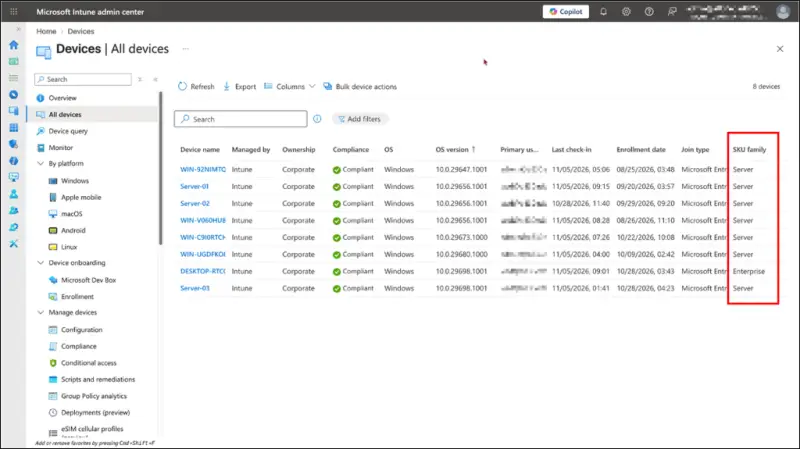
Don't read that as parity with PCs. Not every Intune capability available for Windows PCs is supported on Windows Server, and the limitations section below spells out the gaps.
Who qualifies right now
Eligibility is narrow, and it's the first thing to check. Enrollment is limited to specific Windows Server Insider builds and supported configurations. The preview scope, as Microsoft describes it, looks like this:
| Area | Preview support |
| Windows Server version | Windows Server vNext Insider Preview build 29621.1000 or later |
| Installation type | Desktop Experience |
| Server type | Persistent physical servers and virtual machines |
| Virtual desktop environments | Persistent single-session hosts |
| Join options | Microsoft Entra join and Microsoft Entra hybrid join |
Microsoft hasn't announced a general availability date or final licensing details. Treat anything you build on this preview as provisional until those arrive.
Where the preview fits
Microsoft points to three scenarios where bringing servers into Intune standardizes endpoint work.
Privileged access workstations and jump servers. These give administrators controlled access to production, development and other critical systems. Bringing eligible ones into Intune lets endpoint teams apply supported configurations, deploy applications and track compliance with the workflows they already run for PCs.
Branch office and edge servers. Retail sites and distributed offices often run local servers alongside employee PCs. Eligible branch and edge servers can join the same device-management environment as the Windows endpoints around them, rather than sitting in a separate toolset.
Persistent session hosts. Organizations running persistent Remote Desktop Session Host environments can manage eligible single-session hosts through Intune. Microsoft cites hybrid deployments such as Azure Virtual Desktop Hybrid, where admins want supported endpoint settings applied to individual sessions. The virtualization platform still manages host pools and images, while Intune handles the supported endpoint tasks for each session. Multisession hosts with several concurrent user sessions are not supported in this preview.
Microsoft also lists Active Directory-joined servers in environments using Microsoft Entra Connect, plus Microsoft Entra ID-joined servers, as eligible scenarios.
Enrolling a test server
Server enrollment is disabled by default, so nothing reaches your tenant until an admin opens it. Before starting, you need a supported Windows Server Insider build, a non-production test tenant and a licensed pilot account. The sequence Microsoft describes runs in five steps.
Step 1: Join the Windows Server Insider Program. Register, obtain a supported preview build, and install it on a non-production physical server or virtual machine that meets the preview requirements.
Step 2: Allow Windows Server enrollment. In the Intune admin center, go to Devices > Enrollment > Device platform restriction > Windows restrictions > All users > Properties. Change the Server devices setting from Block to Allow.
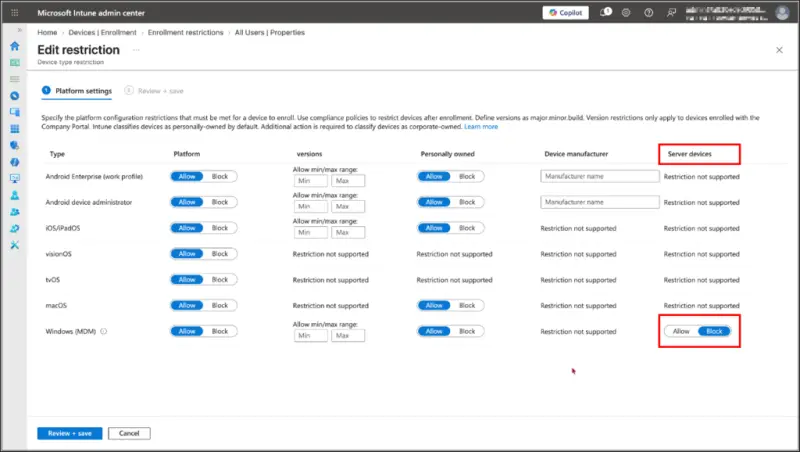
You can make this change in the default restriction or in a custom Windows restriction assigned to the relevant pilot users. For a controlled pilot, Microsoft recommends the custom restriction. Changing the default restriction broadly reaches far more than your test group.
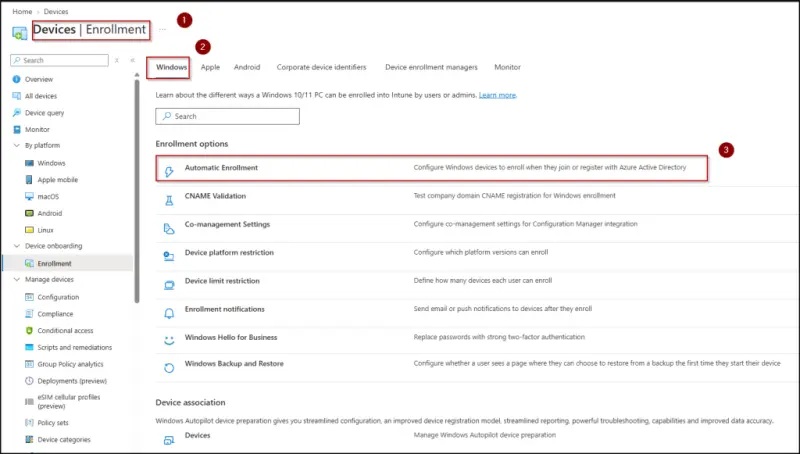
Step 3: Configure automatic enrollment. Go to Devices > Enrollment > Windows > Automatic Enrollment and set the MDM user scope to include the pilot users who will enroll servers. Hybrid-joined servers also need the required Group Policy-based automatic enrollment settings.
Step 4: Enroll the device. On the supported server, open Settings > Accounts > Access work or school, add a work or school account, and complete the Microsoft Entra join and Intune enrollment process. Eligible hybrid-joined servers can also enroll automatically.
Step 5: Verify in Intune. Open Devices > All devices. The server should appear under the Windows platform beside your PCs, and you can then review its details, assigned policies, application deployment status and compliance state.
One trap sits in this sequence. Existing custom Windows device restrictions can keep blocking server enrollment until you explicitly update them, so review those restrictions and their assignments before the first attempt. A failed enrollment that looks like a server problem is often just an old restriction doing its job.
What to check before the first server enrolls
Bringing servers into Intune exposes them to existing assignments and administrative permissions. Here's where I'd start in the test tenant.
Review existing policy assignments. Broad assignments to All devices, to users, or to dynamic groups may reach newly enrolled servers, depending on the policy and the workloads it supports. Placing servers in a separate device group doesn't automatically exclude them from assignments made elsewhere.
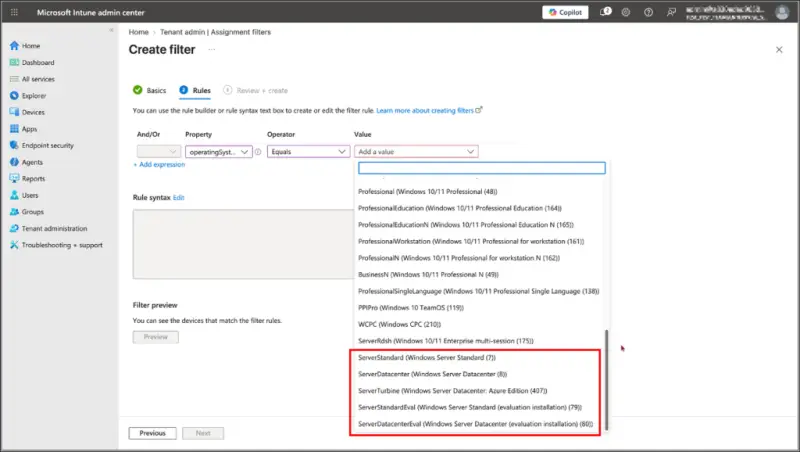
Build server-specific assignment filters. Filters separate Windows Server devices from Windows PCs. In the Intune admin center, go to Tenant administration > Assignment filters > Create > Managed devices, select Windows 10 and later as the platform, and build the rule on the operatingSystemSKU property. Microsoft's example matches ServerStandard, ServerStandardEval, ServerDatacenter, ServerDatacenterEval and ServerTurbine, which covers Standard and Datacenter editions, their evaluation editions and Datacenter: Azure Edition. Test the filter's results before relying on it. A loose match such as "starts with Server" could also catch ServerRdsh, which belongs to Windows Enterprise multisession editions.
Review compliance policies. Leave unsupported checks, including Firewall, Antivirus and Antispyware, as Not configured where the preview guidance requires it. BitLocker deserves attention too, because it isn't installed on Windows Server by default. A rule that expects BitLocker protection could mark a server non-compliant, and that can affect device-based Conditional Access.
Review roles and scope tags. Existing Intune roles and scope tags can apply to enrolled servers. Admins who currently manage PCs may suddenly see servers and gain permission to act on them. Create separate scope tags for pilot servers, check who holds access to them, and keep server tags away from general PC helpdesk roles. Review permissions for sensitive remote actions, including wipe, and consider multi-admin approval for high-impact actions where it's supported. Scope tags don't restrict Microsoft Entra directory roles, so admins holding broader roles such as Intune Administrator may still reach sensitive information and actions.
Avoid conflicting management tools. Many organizations already manage servers with Group Policy, Configuration Manager, Azure Arc or Azure Policy. Before adding Intune, decide which tool owns each setting or workload. If Azure Arc and Intune try to enforce different values for the same setting, you'll get unpredictable results. Using both is workable, provided responsibilities are written down.
Review Conditional Access requirements. If Conditional Access applies to enrolled servers, check the authentication requirements and how they affect device communication and sync. Test with pilot accounts and devices before widening enrollment. If synchronization breaks, start by checking the server's work or school account connection and its authentication status.
Stopping a test is simple but incomplete. Removing the enrollment restriction blocks new server enrollments, but servers already enrolled stay managed. Retire or delete them through Intune as your test scenario requires.
Current limitations
The preview brings familiar endpoint features to servers, but it doesn't offer the full Intune feature set available for PCs. Plan your pilot around these gaps:
| Area | Current limitation |
| Operating systems | Windows Server 2019, 2022, 2025, and Server Core aren't supported. |
| Server environments | Multisession, ephemeral, and nonpersistent hosts aren't supported. |
| Enrollment | Windows Autopilot, MDM-only, bulk, userless, and automatic enrollment for co-managed devices aren't supported. |
| Compliance | Firewall, Antivirus, Antispyware, and Configuration Manager compliance checks aren't supported. |
| Updates | Quality, feature, and driver update policies aren't supported through this preview. |
| Remote management | Only supported remote actions work. Other actions may appear in the console but won't function for servers. |
| Other capabilities | Endpoint Privilege Management, Resource Explorer, and disconnected or air-gapped server management aren't included. |
The table is the part I'd print and pin up before the planning meeting. Notice that the OS exclusions cut against the eligibility list: the supported build is a vNext Insider preview, while the 2019, 2022 and 2025 releases fall outside this preview. Microsoft may widen support as the preview evolves, so check the latest planning guide before testing additional workloads.
Is Intune the right tool for your servers?
Not every server belongs in Intune. The answer depends on who owns the box and what kind of management it needs. Ask these questions:
- Team ownership: does the endpoint team or the infrastructure team manage this server?
- Team skills: does the team responsible for the server already manage Windows PCs through Intune?
- Azure usage: does your organization already use Azure services to manage its infrastructure?
- Standardization: would one platform for eligible servers and PCs actually simplify administration?
- Infrastructure needs: does the server require infrastructure-level monitoring, governance and management across hybrid or multicloud estates?
If endpoint management is the main requirement, Intune can bring eligible servers into workflows your team already knows. For broader infrastructure management, Azure Arc remains part of the picture. Most teams will end up using both, which is why the ownership split matters more than the tool choice.
The sensible next step is a small pilot on a non-production Insider build, with a dedicated restriction, server-only filters and scope tags, and a written list of which tool owns which setting. Watch for general availability dates and licensing details, which Microsoft hasn't given yet. Until then, treat this as a way to learn how your policies behave against servers, not as a replacement for your current server management.