Microsoft Baseline Security Mode Adds 24 Settings and Azure, Windows Coverage
- Blesslin Rinu
- 644 views
Baseline Security Mode grows to 44 settings at Ignite 2026, adding an Applications category, five more workloads and Azure and Windows previews. Here's what to check.
Baseline Security Mode (BSM) started at Ignite 2025 as Microsoft's step toward a secure-by-default ecosystem. It gave admins one place to apply Microsoft-recommended security settings across Microsoft 365 and Entra. The 2026 release is the bigger one. It adds 24 settings, a fourth category, five more workloads and, in preview, coverage that reaches into Azure and Windows.
What changed in this release
BSM 2026 is generally available, except for the features Microsoft has marked Private Preview. The rollout is phased across all supported Microsoft 365 cloud environments, so check your tenant rather than assuming the new settings are already visible.
The headline numbers are straightforward. The existing 20 baseline policies now sit alongside 24 new ones, for 44 in total. The new settings span Authentication, Devices and a new Applications category. The workloads in scope have grown from five core ones (Office, SharePoint, Teams, Exchange and Microsoft Entra) to ten, with Intune, Purview, Dynamics 365, Azure and Windows added.
Here's how the categories now break down:
| Category | Existing settings | Added | Total |
| Authentication | 12 | 4 | 16 |
| Devices | 2 | 4 | 6 |
| Files | 6 | – | 6 |
| Applications | – | 16 | 16 |
| Total | 20 | 24 | 44 |
The Files category gets no new settings. Most of the new weight sits in Applications, which is where I'd expect many teams to spend their review time.
Authentication and device settings
Eight settings land in the Authentication and Devices categories. The four identity additions are worth a close look because they touch external access, which tends to accumulate exceptions over time.
Blocking federation with Microsoft 365 trial tenants is the first. Trial tenants are easy to create, so this setting reduces the chance of an unwanted external trust relationship. Second, external applications can be blocked from using pre-authenticated tokens to reach OneDrive and SharePoint content. Third, Continuous Access Evaluation lets Entra revoke access close to immediately when a user's conditions change, such as an account being disabled or a password being reset. Fourth, guests and external users must complete MFA before they reach organizational resources.
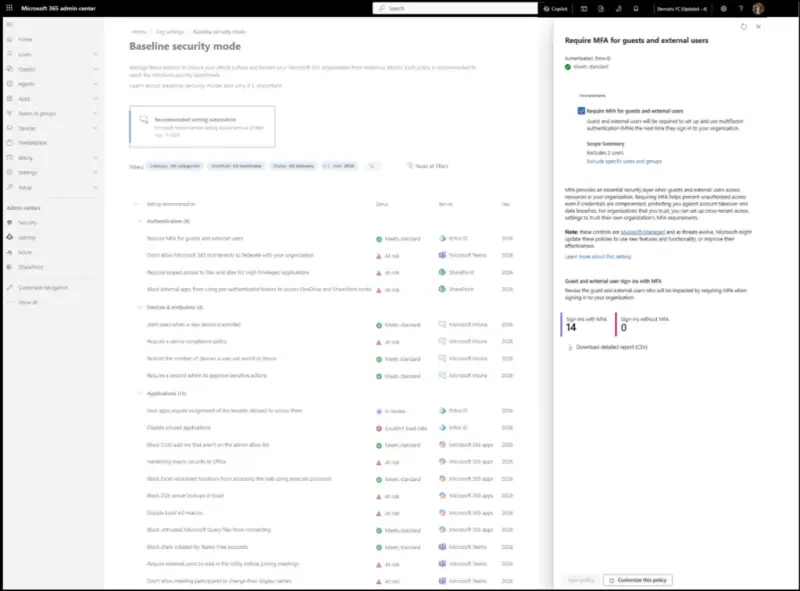
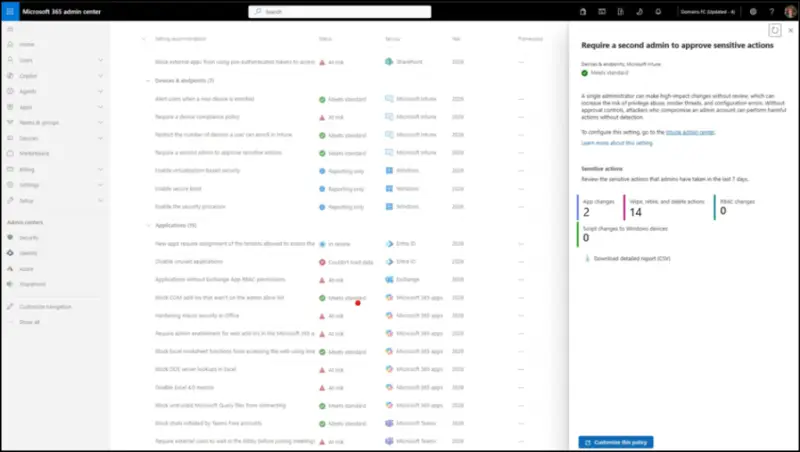
On the device side, the four additions extend Microsoft Intune's management and endpoint controls. Users get an alert when a device is enrolled in their name, which helps catch enrollments they didn't make. A device compliance policy becomes a requirement, so devices without one are marked noncompliant rather than compliant by default. Enrollments per user can be capped, so one account can't register an unlimited number of devices. And sensitive Intune actions, such as device wiping, can require a second admin's approval.
That last one is a good example of how these settings change daily operations. If your team wipes devices from a single admin account, multi-admin approval adds a step. Plan for it before you switch it on, not after someone gets stuck mid-incident.
The new Applications category
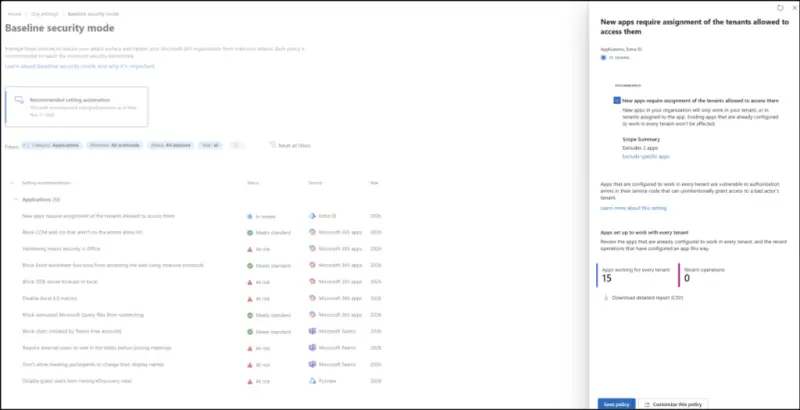
Apps often hold broad access to organizational data, and excessive permissions or weak configurations are a real exposure. The Applications category adds 16 settings aimed at both. They're spread across Entra, Purview, Dynamics 365, Exchange Online, Office, SharePoint, OneDrive and Teams.
In Entra, newly registered apps can be made to require an assignment of the tenants allowed to access them, which limits cross-tenant use. In Purview, two settings address eDiscovery. One stops default privileged eDiscovery role assignments to external guests. The other blocks eDiscovery admins from assigning those roles to new guest accounts, since those roles can search and export Microsoft 365 data. Both leave existing assignments alone, so you'll need to audit current guest role holders separately.
Dynamics 365 gets one setting that stops Power Platform apps and Power Automate flows from using Entra authentication to reach external tenants without authorization. In Exchange Online, applications without Exchange RBAC permissions are flagged, and their broad Entra permissions are replaced with scoped RBAC permissions. That's a change that could affect integrations, so test any mail-enabled app before enforcement.
Office accounts for six settings, and most of them are about legacy or untrusted content. COM add-ins not on the admin allow list are blocked. Macro security gets runtime checks, stricter signatures for always-loaded macros and tighter publisher trust. Excel worksheet functions can no longer pull data over insecure protocols such as HTTP. DDE server lookups are turned off. Excel 4.0 macros are disabled, and existing automation should move to VBA, which has stronger controls. Query files downloaded from the internet (.iqy, .oqy, .dqy, .rqy) can't make external connections. The Excel 4.0 change deserves early attention because legacy workbooks often hide the automation nobody documented.
SharePoint and OneDrive get two settings. Classic pages can no longer be created or edited, which reduces exposure to an outdated framework and script injection. Third-party apps using High-Privileged-Access permissions are blocked unless they're scoped or admin-approved.
Teams gets two meeting controls. External users can be made to wait in the lobby, so organizers can admit only invited participants. And participants can no longer change their display names mid-meeting, which closes off an easy impersonation trick.
Azure and Windows, still in Private Preview
Azure and Windows are in Private Preview, while Intune, Purview and Dynamics 365 support is already generally available. Treat the preview sections as a sneak peek, not something to plan production changes around.
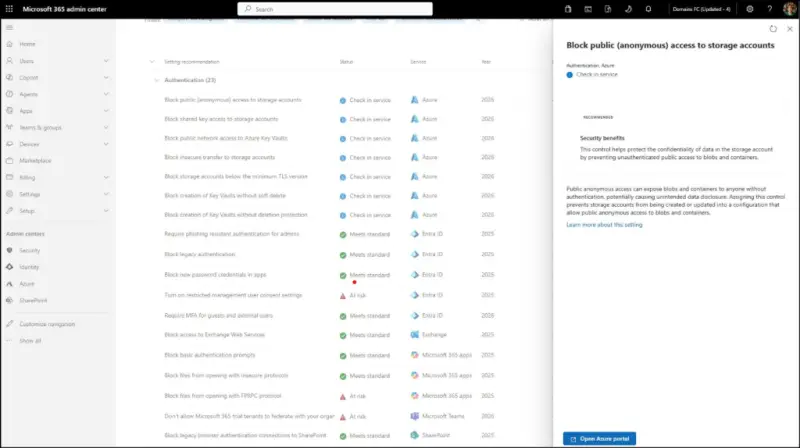
The Azure set adds seven settings: four for Storage and three for Key Vault. The storage settings block insecure transfer, block anonymous public access to blobs and containers, enforce a minimum TLS version and disable Shared Key authorization in favour of identity-based access. The Key Vault settings disable public network access, and require soft delete and purge protection on newly created vaults. Microsoft describes these as Azure Policy-based, which means you can evaluate their impact before enforcing them. That's the right order of operations for anything that might break a storage-dependent application.
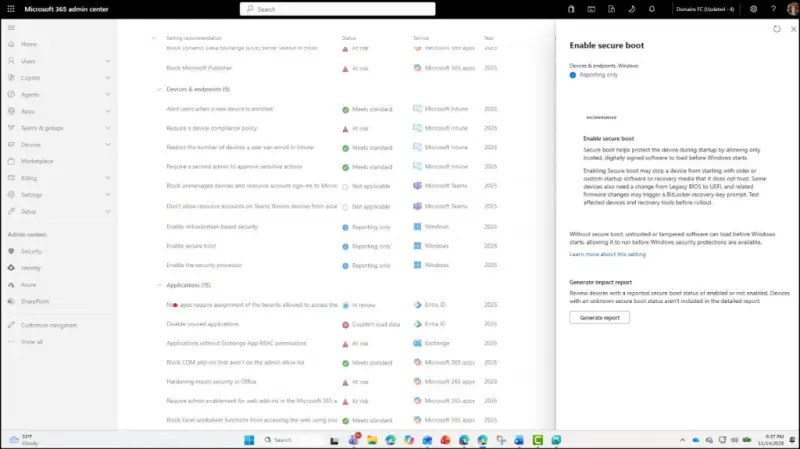
The Windows baseline covers eight security requirements for a device. Three are in the admin center in Private Preview: requiring a security processor (TPM), enabling Secure Boot, and enabling Virtualization-Based Security. The other five are listed as part of the Windows baseline, including Memory Integrity, signed and Windows-certified drivers only, restricted kernel debugging, and blocking known vulnerable drivers. If you manage a Windows fleet with older hardware, check TPM and Secure Boot status now, because those are the settings most likely to surface gaps.

Dashboard and reporting features
Four management features are also in Private Preview. An action-oriented dashboard shows BSM posture in one place and flags settings that need attention, so admins can set priorities. Downloadable security and compliance reports give you something to share with stakeholders and bring into reviews. Framework mapping shows how each setting relates to compliance frameworks. Microsoft is clear that BSM doesn't guarantee compliance, and organizations remain responsible for their own obligations. Geo views for Multi-Geo tenants show posture by location.
For MSPs and multi-tenant admins, the Multi-Geo view and reporting will matter more than any single setting. Consistent reporting is what turns a baseline into something you can defend in a client review.
What's next
Microsoft plans to make the current BSM settings the default for all new Microsoft 365 tenants, and it strongly encourages existing Microsoft 365 and Entra customers to opt in. It also plans to bring BSM to on-premises servers through On-Premises Baseline Security Mode, starting with Exchange Server, SharePoint Server and Skype for Business Server. The stated aim is a validated, secure-by-default configuration from first deployment, with fewer settings left for admins to configure by hand.
My read: the default-tenant change will do more for small organizations than anything else in this release, because they're the ones least likely to ever open the admin center. For everyone else, the job for this quarter is an inventory. Check which settings you'd be enabling, who holds guest eDiscovery roles, which apps rely on Exchange or Entra permissions, and which Excel workbooks still depend on macros. Then watch the Private Preview features as they move toward general availability.