Agent Assets Document Library: Where SharePoint Keeps Copilot Skills Files
- Gregory Zelfond
- 468 views
SharePoint's new Agent Assets Document Library auto-creates on first skill use. Keep SKILL.md in its exact folder path, or Copilot Chat stops finding the skill.
For years, SharePoint gave you four kinds of libraries: the Document Library, the Site Assets Library, the Site Pages Library and the Preservation Library. Those four were stable enough that most admins stopped thinking about them. Then Copilot arrived, and in 2026 SharePoint added a fifth. The Agent Assets Document Library exists for one job: storing the skill files that Copilot uses. If you manage sites where people build or share Copilot skills, this library will show up whether you planned for it or not, so it's worth understanding before it does.
What a skill is, and why it needs a library
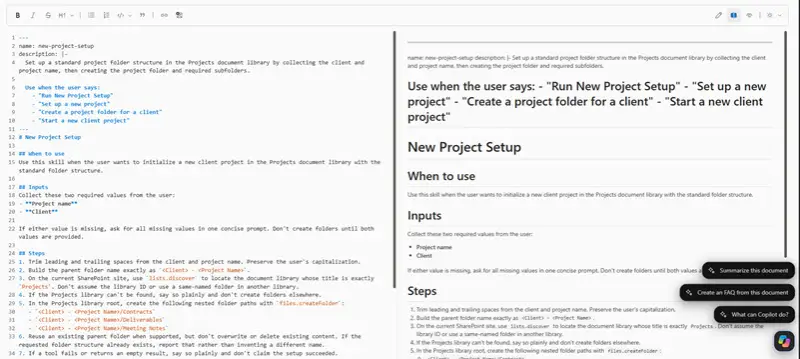
A skill is a file that holds step-by-step instructions for Copilot. It's a Markdown file, so it carries an .md extension, and the file itself is named SKILL.md. Think of it as a written procedure that Copilot reads when a user asks for a task the skill covers. The instructions live in a file rather than in a chat prompt, which means they persist on the site and can be found again later.
That persistence is the reason for a dedicated library. A skill has to sit somewhere Copilot can locate it reliably, and SharePoint needed a predictable home for those files. The Agent Assets Document Library provides it.
How the library gets created
Here's the practical change. When skills first appeared, you had to switch on a Site Collection feature before the library would exist. You can still do that, but you no longer need to. The library is created automatically on a site the first time someone creates a skill through Copilot Chat. For most admins that means you won't provision it on purpose. You'll notice it after a user builds a skill, and you'll want to know what it is before someone asks.
My read is that this auto-creation is the right default. Fewer manual steps means fewer sites where a skill quietly fails because a feature was never turned on. It also means the library can appear on sites you didn't expect, so it's worth checking which sites your users are building skills on.
Folder structure you need to recognise
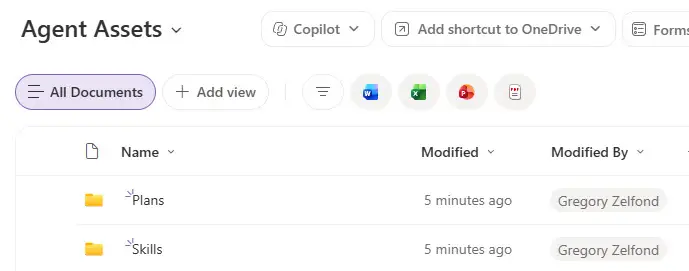
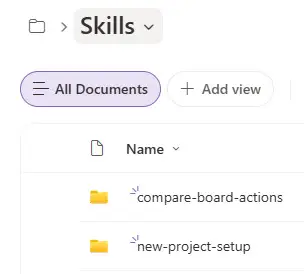
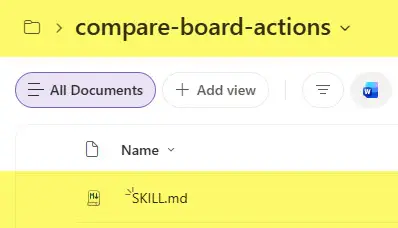
Open the library and you'll find a folder called "Skills". Inside it sits one folder per skill, named after that skill. Inside each skill folder is the SKILL.md file. The full path looks like this:
Agent Assets Document Library > Skills > [Skill Name Folder] > SKILL.md
The rules that will bite people
The library is simple to look at and easy to break, mostly because the naming and location rules are strict. Two of them matter most.
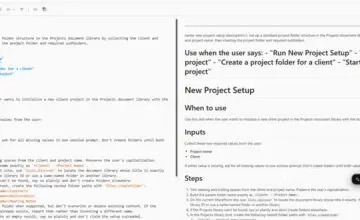
First, do not rename the SKILL.md file. If you change the name, Copilot can't find the skill, and attempts to list or load it through Copilot Chat return an error. The screenshot below shows what that looks like: site skills appear as unavailable because SKILL.md is missing.
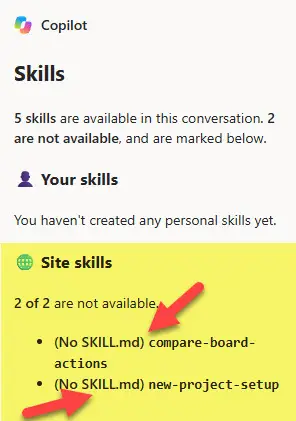
Second, do not move the file, even within the same library. The folder hierarchy is mandatory. Dragging SKILL.md up a level or into a tidier folder of your own design breaks the skill in the same way a rename does. Here's the thing: SharePoint libraries usually reward reorganising, so people instinctively tidy them. In this library, tidying is what breaks things.
Beyond those two, the library accepts other file types such as Word, Excel and PDF. That doesn't make it a good place for them. The library isn't designed for collaboration, so keep ordinary working documents in the libraries you already use.
What you do get: full document management
The Agent Assets Document Library behaves like a normal document library in the ways that count for governance. It supports Version History, download and sharing. That matters if a skill's instructions change and you need to see what the file said last month, or roll back after a bad edit. Version History is the first thing I'd lean on when a skill starts giving odd answers after someone edits it.
The part you can't undo
The library cannot be deleted. Once it's created, it stays on the site permanently. That's sensible, because deleting it would take every skill on the site down with it. The downside is that you can't clean up an unused skill setup by removing the library, so plan site hygiene around the skill folders and the files inside them rather than the library itself.
What to do before your next change window
Teams in this position usually start by finding out which sites already contain an Agent Assets library, then deciding who is allowed to create skills there. Tell the people building skills that SKILL.md must keep its name and its location. Add a line to whatever runbook covers SharePoint site changes, so that a well-meaning clean-up doesn't break a working skill.
Expect this library to matter more as Copilot skills spread. Four libraries were enough for a long time. The fifth one will likely become a routine part of site reviews, and the sites that handle it well will be the ones where someone wrote down the folder path before users started moving files around.