Auditing a User's SharePoint and OneDrive Access With the Site Permissions Report
- Gregory Zelfond
- 893 views
The Site Permissions for Users report in SharePoint Admin Center shows which sites and files a user can reach, and how they got that access.
Ask any IT manager what they need during an offboarding or a role change, and the answer usually comes down to one question: what can this person actually reach? For years, the best answer most of us could give came from Microsoft 365 Group membership. That's a useful signal, but it only tells you about Team sites connected to a group. It says nothing about classic SharePoint sites without a group, and nothing about private or shared channel sites. Those gaps are where surprises tend to hide.
The Site Permissions for Users report closes much of that gap. It's a SharePoint Admin Center report that takes one or more users and tells you which sites they can access, and whether that access comes from the whole site or from specific files and folders. My read is that it's the first native tool that gives admins a per-user view across both SharePoint and OneDrive, which is why it's worth understanding before you need it under pressure.
Running the report step by step
The path is a little buried, so here it is in order. Open the Microsoft 365 App Launcher, choose Admin, and go to the Microsoft 365 Admin Center.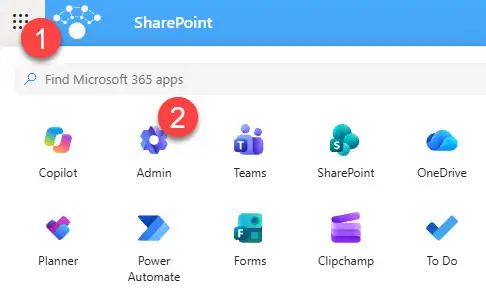
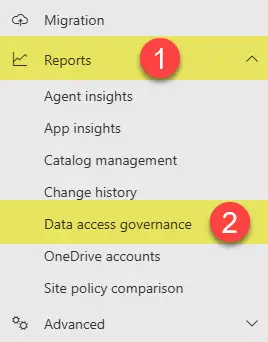
Under Admin centers, select SharePoint to open the SharePoint Admin Center.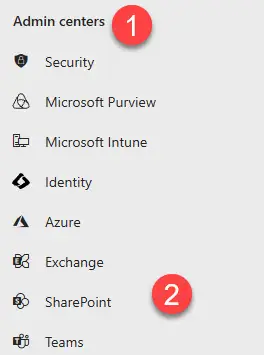 Expand Reports, then choose Data access governance.
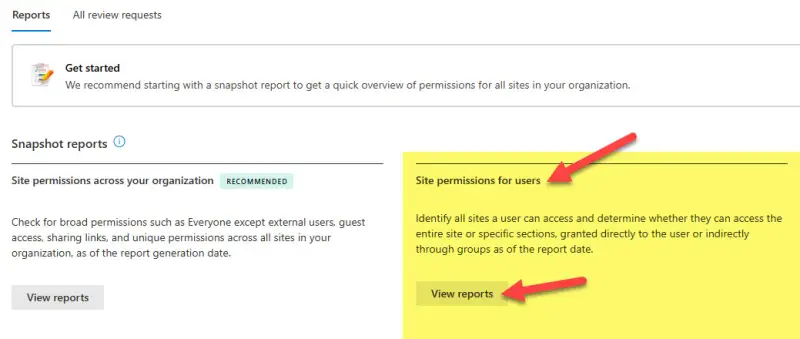
 In the Reports area, click View reports under Site permissions for users.
Click Create report. Then use Add users to report to pick the account or accounts you need, and save.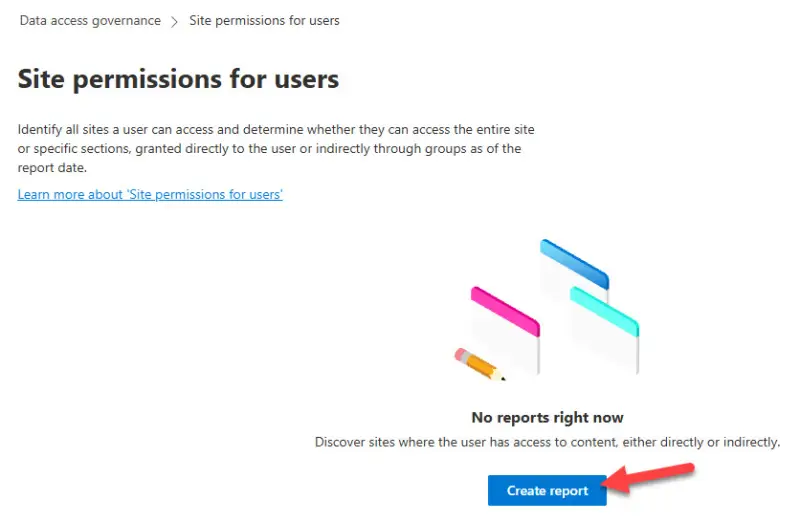
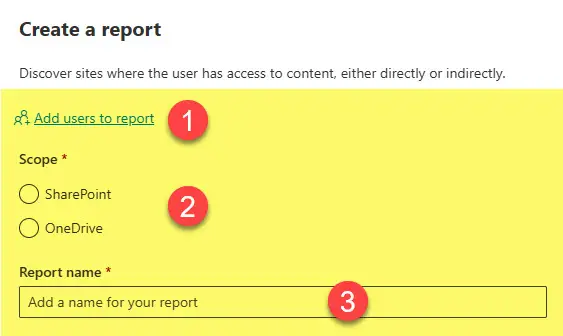
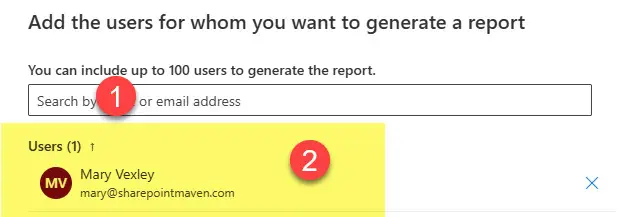
The scope decision matters more than it looks. You choose either SharePoint or OneDrive, and you can only pick one per report. Give the report a name you'll recognise later, then select Create and run.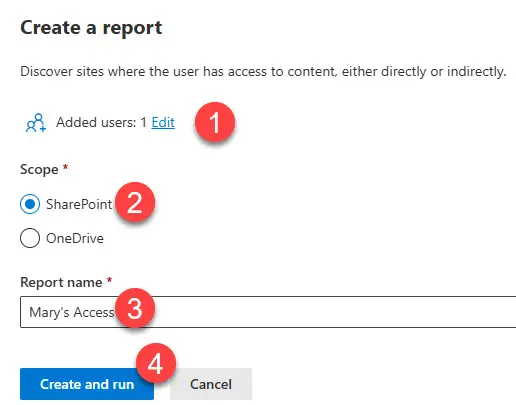
Don't expect instant results. The report generates in the background, and the time it takes varies. The author's run took 24 hours, though the stated range is anywhere from a few hours to a few days. Plan for that lag in any time-sensitive process. When it finishes, the status column updates to show the sites found and the last-updated time.
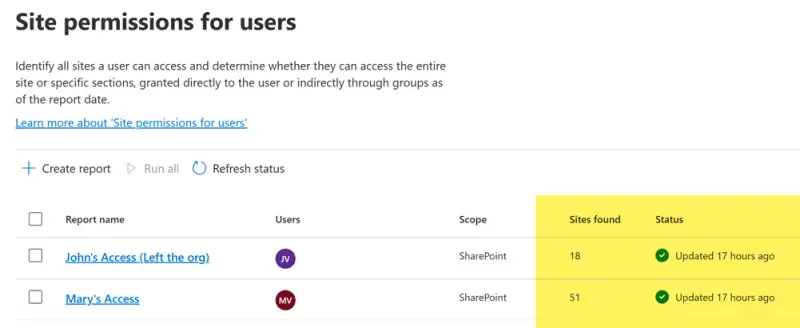
Open the report and you can filter by user if you included several. For the full dataset, use Download detailed report. The Excel file lists the sites and site URLs each user can reach, along with how that access was granted.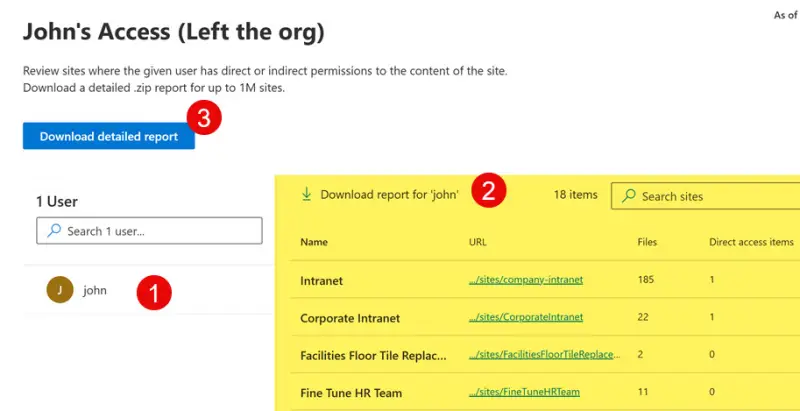
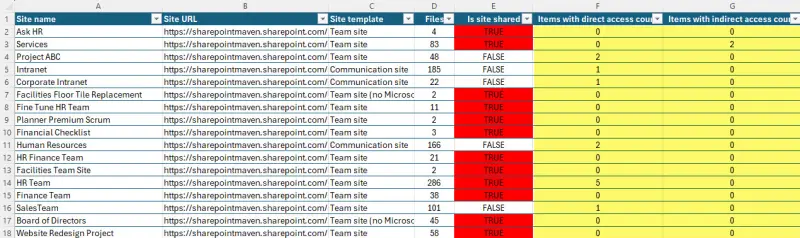 That last detail is the valuable part. A user with full-site access is a very different risk from one who can only open a handful of specific folders.
Where this report earns its place
The use cases tend to cluster around three situations. The first is a departure. You want to know every site a leaving employee could reach before you decide what happens to their content.
The second is a move between departments. Someone shifting from Finance to Operations can easily keep Finance access they no longer need, because old memberships don't disappear on their own. Checking the report after the move shows what carried over.
The third is licensing. Before you assign a Microsoft 365 Copilot licence, it's sensible to confirm the user can't reach confidential material they were never meant to see. Copilot works with what the signed-in user can already access, so an over-broad permission set becomes a bigger problem once an AI assistant is added. Teams in this position typically run the report before the licence goes live rather than after a complaint surfaces.
Limits you need to plan around
The requirements are strict enough to trip people up. You need to be a SharePoint Administrator, and you need the appropriate SAM (SharePoint Advanced Management) licensing. Each report can hold up to 100 users, so a large offboarding wave means several reports.
Treat the output as a snapshot, not a live view. Permissions can change the moment after the report completes. You can also run a report only once every 24 hours, so if you find something and fix it, re-running to confirm the fix means waiting. Build that into your change window.
Scope is the other trap. SharePoint and OneDrive are separate scopes, so if you need both views, you'll create two reports. When you run the OneDrive scope, the report shows whether the target user can reach files and folders in other people's OneDrive accounts. That's easy to miss, and it's often the finding that matters most.
Acting on what the report shows
For a leaver, the order of operations matters. Block sign-in and remove the licence in the Microsoft 365 admin center first. Then decide what happens to their files. The author covers those file-handling options in this post. Remember that the OneDrive account becomes unlicensed once the licence is gone, and unlicensed accounts are easy to forget. The author's guide on finding them is here.
For a department change, the fix is usually simpler. Remove the user from the old Microsoft 365 Group or SharePoint group. A single group removal often clears access to several sites at once, which is far quicker than hunting down individual site permissions.
My takeaway: run the report before the change, not after. The snapshot needs time to generate, the scope choice is easy to get wrong, and the file-level detail is where the real exposure sits. Put it on the offboarding checklist and the role-change checklist, and it'll save you a scramble the next time someone asks what a user can see.