Restricted Content Discovery: Keeping SharePoint Sites Out of Copilot Results
- Gregory Zelfond
- 844 views
Restricted Content Discovery hides a SharePoint site from Copilot and org-wide search, permissions unchanged. Here's how to enable it and where it stops.
Copilot's reach across SharePoint has become a governance question for many tenants, and the usual answer, tightening permissions, doesn't always fit the problem. Microsoft's Restricted Content Discovery (RCD) gives admins a different lever. It keeps a site's permissions exactly as they are, but removes that site's content from Copilot and from organization-wide search. That's narrower than it sounds, and the details decide whether it suits your environment.
Turning it on in the SharePoint admin center
The setting sits in the Microsoft 365 admin center, and the path is short:
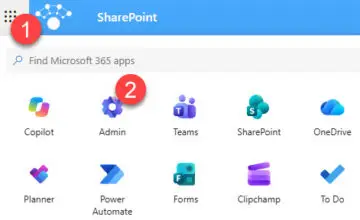
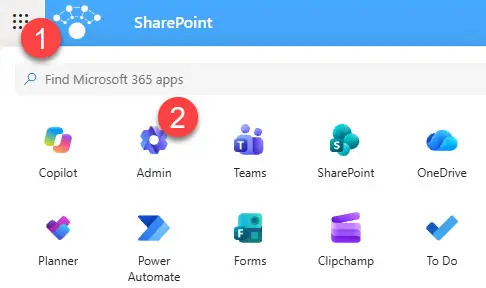
- Open the Microsoft 365 admin center from the app launcher, where the Admin app is highlighted.
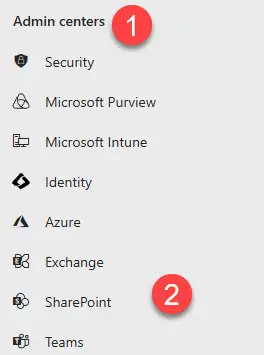
- Under Admin centers, select SharePoint.
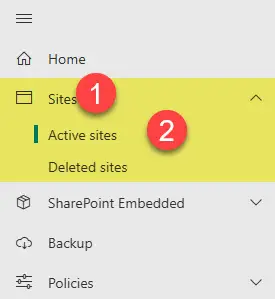
- Expand Sites and choose Active sites.
- Click the site you want to restrict, open the Settings tab, set Restrict content discovery to On, and click Save.
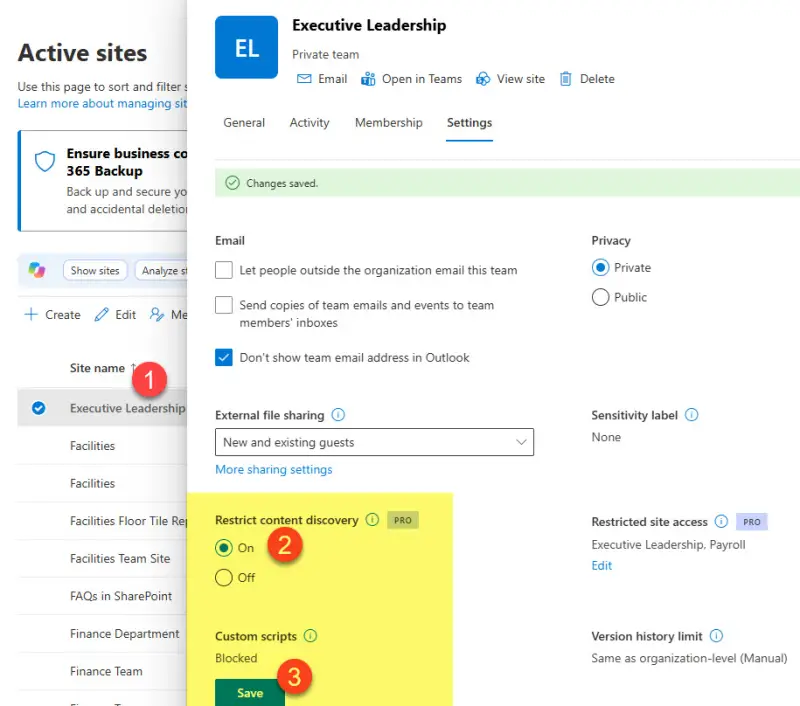
Budget for this one before you plan a rollout. It isn't a free feature, so confirm the licensing position in your tenant first. The change itself takes a few clicks per site, which means the real effort is deciding which sites belong in the restricted set.
What users actually see
Once a site is restricted, the effects are visible in three places:
- The Copilot button and related Copilot functions, such as agent creation, disappear from the site.
- Copilot and organization-wide search stop surfacing the site's content. That covers Hub-Level Search, search from the SharePoint Start Page, and search from Office.com.
- The site header displays the word "Restricted", with a tooltip.
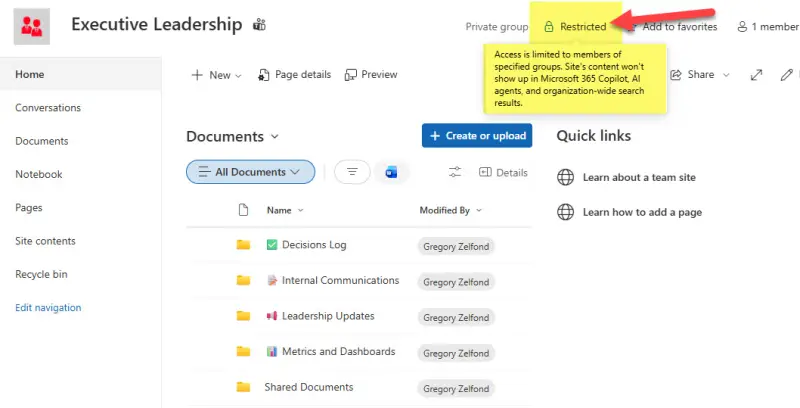
Expect the Copilot button to be the first thing site owners notice. It's worth a short note to them before you flip the setting, so a missing button doesn't become a helpdesk ticket. The "Restricted" label is useful here because it explains the change to anyone who looks at the header.
Where the restriction stops
This is the section I'd read twice before rolling anything out. RCD changes what gets found, not what can be opened:
- Site permissions don't change. Anyone who already has access can still open the site and its files directly.
- Site search still works. Searching inside the site, at library or site level, returns results as normal.
- OneDrive is out of scope. RCD applies only to SharePoint sites.
- There's no tenant-wide switch. You set it site by site, so a large estate means a deliberate, per-site decision.
- Delegation needs PowerShell. As with Site Access Restriction, you can hand the decision to site owners, but that route runs through PowerShell. Teams without scripting capacity will feel that gap.
The site-search point is the one that surprises people. A user who browses to a restricted site and searches inside it still finds everything. RCD reduces discoverability across the tenant. It doesn't stop a determined user from reaching the content.
Why this isn't a security control
RCD doesn't lock anything. It instructs Copilot to look elsewhere, and that's the whole mechanism. If the real concern is that certain people shouldn't see certain files, the fix is the permissions model. Get the site permissions right first, then decide whether RCD adds anything on top.
That said, the two aren't mutually exclusive. Here's the thing: a site can have correct permissions and still be a poor candidate for broad AI-assisted discovery. Think of a project site that's appropriate for its members but full of drafts you'd rather not see summarised across the organisation. RCD fits that pattern well. It won't fix a site that's overshared in the first place.
What to check before you switch it on
My suggested order, which is general practice rather than anything Microsoft specifies in the source:
- Inventory the sites that hold material you'd rather keep out of Copilot and organization-wide search, and separate them from sites where discoverability is the point.
- Test on one restricted site with a member account and a non-member account. Confirm what the Copilot button, search results and the Restricted label look like from each.
- Tell site owners what changes for them, especially the loss of the Copilot button and agent creation.
- Record which sites are restricted and why. Without that log, the setting turns into an unexplained toggle that nobody remembers setting.
RCD is a sensible addition for sites that are appropriate for their members but shouldn't be broadly surfaced. The delegation story is what I'd watch. If site owners can manage the setting without PowerShell, RCD becomes practical across a large estate. Until then, expect it to stay a targeted tool for admins who are comfortable with a per-site process.