Indexed Columns and Filtered Views for the SharePoint 5,000-Item Threshold
- Gregory Zelfond
- 747 views
Indexing columns and filtering views on them can keep SharePoint lists under the 5,000-item threshold, but only if the first filter hits an indexed column.
If your SharePoint list or library has started throwing errors on its views, you've probably run into the 5,000-item list view threshold. It's one of those limits that rarely matters until a list quietly grows past it, and then suddenly a view won't render at all. The good news is that indexed columns and carefully built filtered views can bring a large list back under the line. The catch is that the fix only works if you set it up in the right order.
The threshold itself has been part of SharePoint for years. It applies when a list or library view needs to return more than 5,000 items at once. Several workarounds exist, and indexing columns is one of the most commonly recommended. The idea is simple: build views whose result sets stay at or below 5,000 items, and make sure SharePoint can find those items efficiently. Take a library with 30,000 items. Viewed as a whole, it's well over the limit, so the view fails. But a view filtered on a Status column and a date range that returns around 3,000 items is well within bounds.
Why an index changes the query
Think of the index at the back of a book. You don't read every page to find a topic. You check the index, and it points you to the exact pages you need. An indexed column does the same job for SharePoint. When a view filters on an indexed column, SharePoint doesn't have to examine every item in the list. It goes directly to the matching items, which keeps the query fast and the result set under the threshold.
That's the mechanism, and it explains most of the rules that follow. The index only helps when it's the entry point to the query. If SharePoint has to scan the whole list before it reaches the indexed column, the index doesn't do much.
Creating the indexed columns
Indexes are set up from the list or library settings. Here's the path, as the steps are laid out:
- From a list or library, click the Gear Icon > List settings
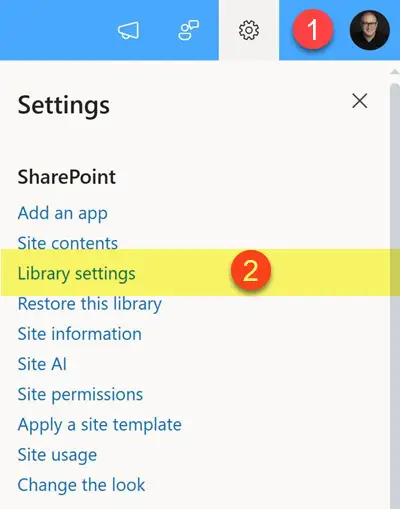
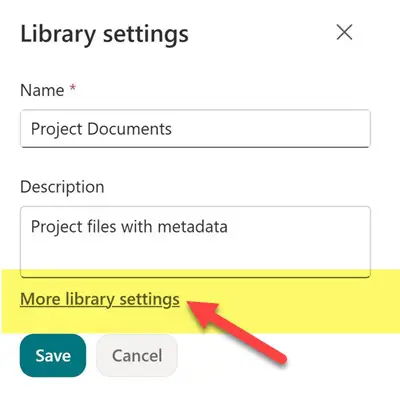
- Click More library settings
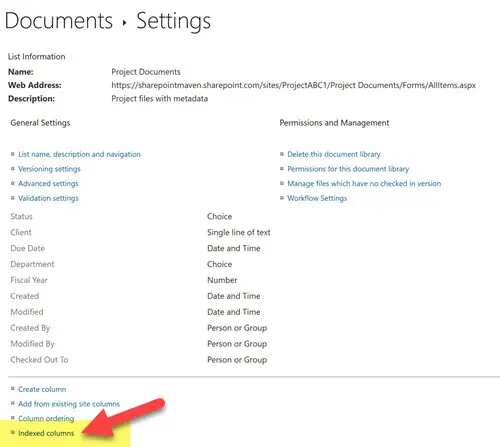
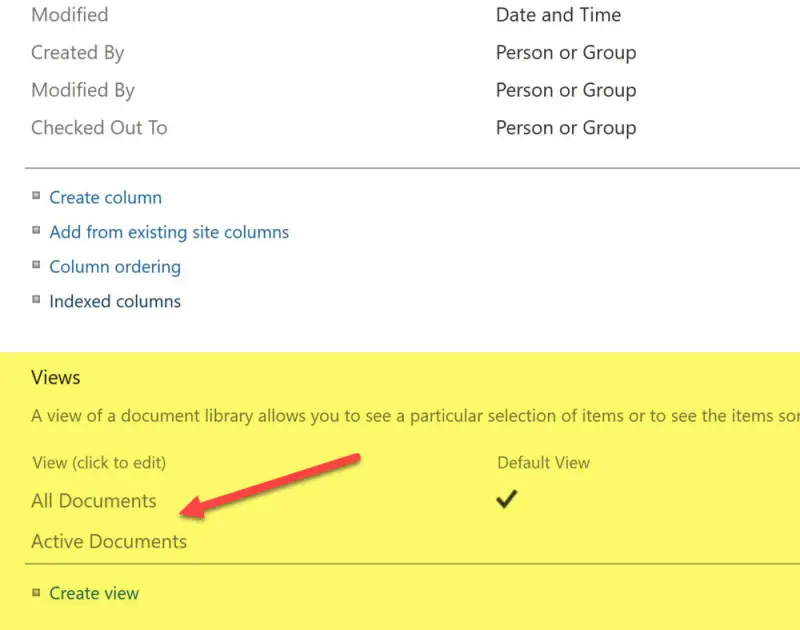
- Scroll down to the Columns section and click Indexed columns
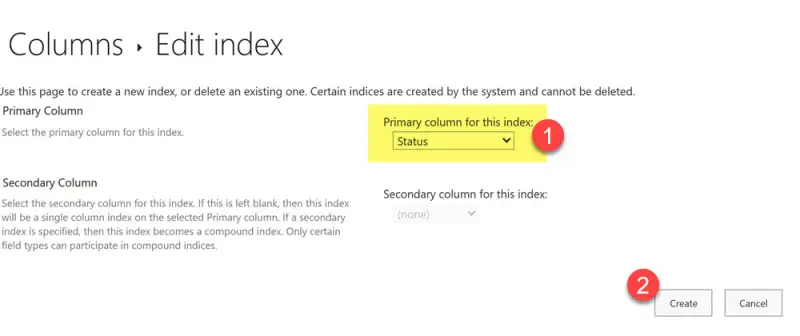
- Click Create new Index, choose the column you want to index, and click Create
- The indexed column is created and appears on the Indexed Columns page
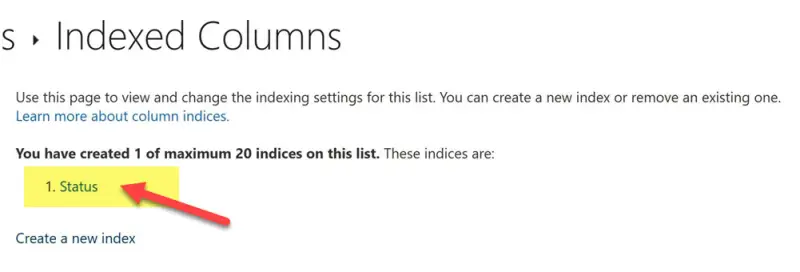
- Repeat for each column you plan to filter by. All your indexes show up on the Indexed columns page.
The Indexed Columns page is also your audit point. It shows how many of the available slots you've used, which matters once you start planning which columns deserve one.
Building the filtered view
Creating the index is only half the job. The view has to be built around it, and this is where most failed attempts go wrong. The first filter in the view must be on an indexed column. If it isn't, SharePoint scans the whole list, and you're back at the error.
- Edit an existing view or create a new one
- Scroll to the Filter section, pick the indexed column as your first condition, and set the criteria
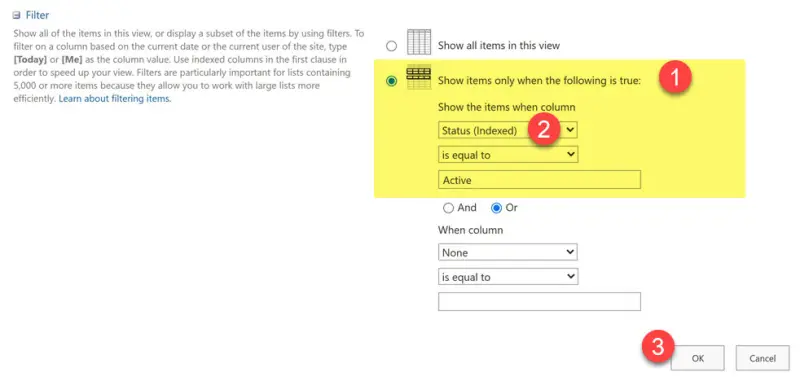 Add any further conditions after the first one. Click OK to save the view.
Here's the thing: the view can look correct on screen and still fail in practice if the ordering is wrong. Test each filtered view after you save it, especially views that other people rely on for daily work.
Where teams get caught
The setup steps are easy. The trouble usually comes later, so these are the points worth writing into your own checklist:
- Create indexes early. You can only create indexes while the list or library is still below the threshold. Once you're over the limit, creating an indexed column may return an error. If a large list is already close to the line, don't wait.
- Filter on the indexed column first. Every filtered view that depends on an index needs that index as its first filter. Otherwise the index provides no benefit.
- Keep every view under 5,000 results. An index doesn't cap the result set. A view filtered on Status = Completed might be fine today and cross the threshold after a few years of growth. Review your busiest views on a schedule.
- Folders and metadata. In libraries with folders, each folder creates its own index, so column indexing often matters less. Libraries that rely on metadata rather than folders, though, need indexes to stay usable as they grow.
- The 20-index limit. You can create up to 20 indexes per list or library. Pick the columns that actually drive your filtered views, and don't index everything out of habit.
- Not every column type qualifies. Most column types can be indexed, but some can't. Examples include multiple lines of text, multi-select Choice columns, and Person and Lookup columns that allow multiple values. If your planned filter depends on one of these, you'll need to rethink the design.
My read is that most teams hit this problem because they treat the threshold as a one-time fix. It isn't. A list that's healthy at 2,000 items can cross the line within a year of normal use, and the views that worked at launch may quietly stop working. Build your indexes and filtered views now, while creating them is still allowed, and add a periodic check of your largest views to the same maintenance routine.