Moving a Site From a Website Builder to WordPress.com Without Rebuilding It
- Semiha Kocer
- 534 views
WordPress.com's site mover claims to carry pages, images, layout and internal links from builders like Wix and Squarespace. Here's what it covers and what to check.
For a small business owner, a website builder is convenient until it isn't. Costs creep up, the site goes down at the worst moment, and the owner realises they don't really control the thing they built. Leaving has always meant rebuilding from the ground up. WordPress.com is now pitching a site mover that brings the design along, and for small brochure-style sites, that changes the arithmetic of a move.
What the mover actually takes across
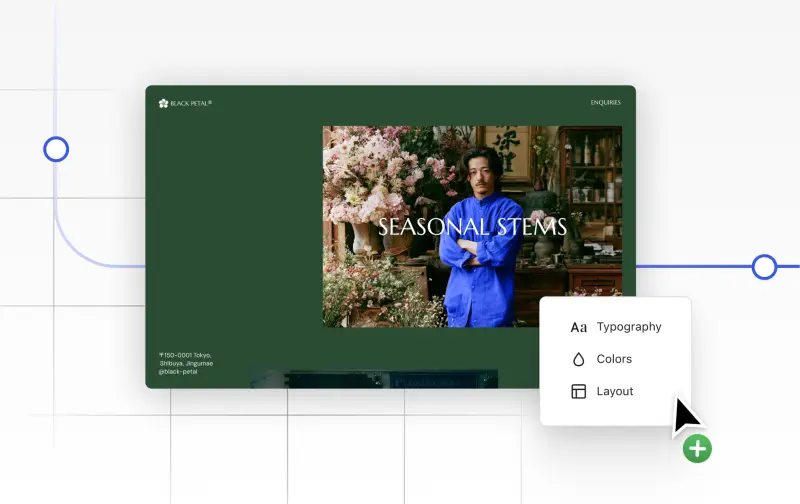
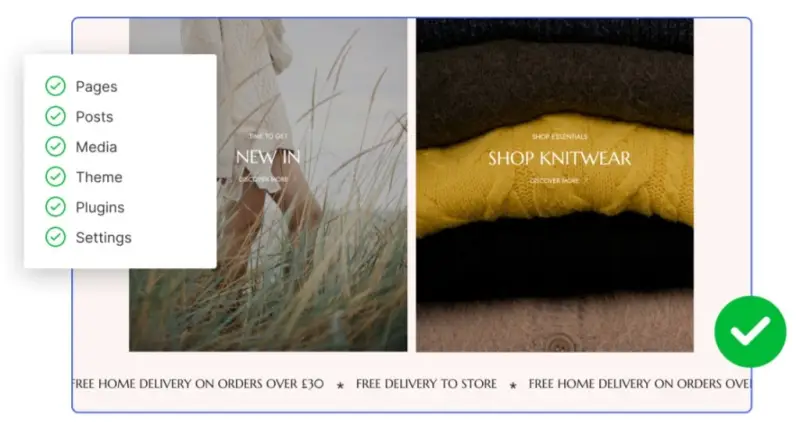
WordPress.com describes its migration tool as built for small websites made mostly of text and images: a café, a dog groomer, a photographer's portfolio. According to the company, the tool carries over your pages, blog posts, text and images, along with your design. That design includes layout, colours, fonts, header, logo and menu, which WordPress.com says it will reproduce "as close to the original as we can get them." It also keeps the links between your pages, so navigation still works the way you built it.
The source-side list is explicit: Squarespace, Wix, Lovable, Base44 and "another builder" are all named as starting points. The only input is the address of the existing site. There are no files to export and no manual rebuild.

The catch is scope. WordPress.com is clear that the tool targets simple sites. Anything beyond pages, text, images and layout, such as custom forms, booking widgets, membership logins or third-party embeds, isn't listed as part of the migration. If your site leans on any of those, treat the mover as a starting point and test each function on the new site before you cut over.
How the workflow runs
The process WordPress.com lays out has four steps. First, you paste the site address. Second, you pick a plan. Third, the company performs the move and emails you when the new site is ready, so you don't need to keep the window open. Fourth, you review the new site alongside the old one, then connect your domain.
That last step is where most of the real work sits. A sensible review covers every page template, the header and footer on mobile, contact forms, any embedded maps or calendars, and anything that was set up in the builder's own dashboard rather than on the page itself. The company says a checklist guides you through the domain connection. Keep the old site running until the new one checks out, since WordPress.com says it stays live while you review and you choose when to switch.
Keeping search traffic intact
Moves like this often damage search visibility, usually because URLs change or redirects are missed. WordPress.com says you can keep your existing domain name. If any page addresses change, its redirect guidance covers how to send visitors and search engines to the right place. Map your old URLs to new ones before go-live, and check the redirects afterwards with a crawl tool.
On the SEO side, WordPress.com says it generates a sitemap automatically so search engines can find your pages. Premium plans and above include built-in Jetpack SEO tools for editing titles and meta descriptions and previewing how pages appear in search results, with no extra plugin required. The company also points to its guidance on explaining what your business offers in a way AI-driven search tools can parse. That's a reasonable instinct, though how those tools use site content is still changing, so treat it as a clear-copy habit rather than a guaranteed ranking lever.
Pricing and what a paid plan includes
WordPress.com lists plans starting at $4 a month when billed yearly, or $48 for the year. It says most paid builder plans currently start around $16 a month. Those are the company's own comparisons, so verify current pricing against your own invoices before deciding.
According to WordPress.com, every paid plan includes unlimited traffic at a fixed price, a free SSL certificate, built-in protections, managed updates, access to more than 60,000 plugins and a free domain for the first year (or you can keep the one you already have). The company also says WordPress.com sites have been online more than 99.99% of the time since 2005. That's a vendor claim, not an independently measured figure, so check the service terms and any uptime commitments in your plan before relying on it. Support is handled by its Happiness Engineers on every plan, with 24/7 priority support on Business plans.
Its savings calculator estimates how much you could save compared with your current spend. Run your own numbers, including any add-ons you currently pay for separately.
Exit terms and what you're actually signing up for
The refund terms matter as much as the feature list. WordPress.com says that if it can't move your site, you get a full refund. Every yearly plan also carries a 14-day money-back guarantee. Read the refund conditions before you start, and make sure you have a full export or backup of the original site in case the move fails or you need to roll back.
Once you're on WordPress.com, the site is a standard WordPress installation. You can edit pages, add new ones, change themes and install plugins. WordPress.com also offers its WordPress Agent, which can edit pages, draft new content and fix items that didn't migrate cleanly. Use it for small fixes, but review anything it changes on a live site.
My read
For a café with a menu page and a contact form, this looks like a reasonable way off a builder without a rebuild. For a site with custom functionality, expect to spend the time you saved on testing. The practical sequence is to inventory your current site, confirm what the mover handles, run the migration, check every page and form on the new address, plan your redirects, and only then switch your domain. Do that, and the move stops being a rebuild project and becomes a cutover with a checklist.