WordPress Studio Now Runs on the AI Accounts You Already Pay For
- Nick Diego
- 392 views
WordPress Studio can now use your ChatGPT, Claude, Copilot or API-key AI accounts, or plug in external agents like Claude Code and Cursor over MCP.
WordPress Studio, the free open source app for building WordPress sites on macOS, Windows and Linux, has stopped asking you to adopt a new AI subscription. The latest release lets you connect the AI accounts you already pay for and use them inside Studio's chat. For teams that already have a model subscription or an API key sitting in a finance spreadsheet, that's a practical change. It also means the agent is no longer a separate tool you have to budget for on top of everything else.
The workflow is the same as before. You describe what you want, and the agent builds it. That could be a whole new site, or a change to a WordPress install you already have, such as a new page or a tidier header. What's different is where the intelligence comes from.
Connect the AI you already have
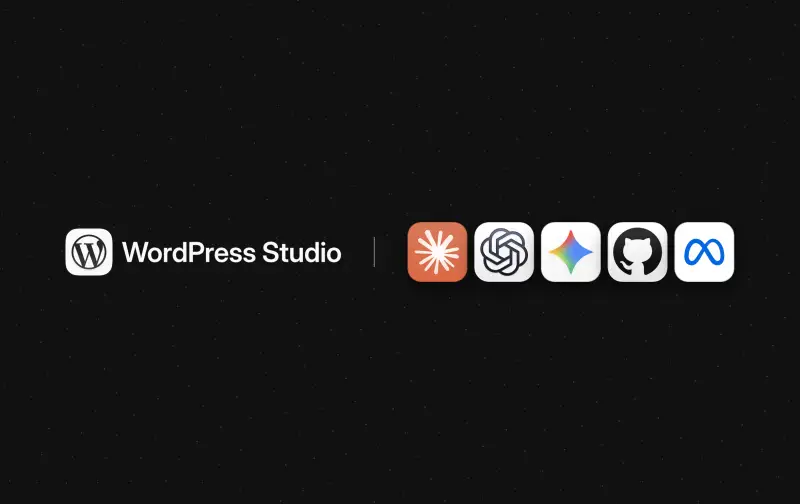
Open Settings → Providers to connect a ChatGPT, Claude or GitHub Copilot plan, or an API key from OpenAI, Anthropic, Google Gemini or Meta. Each provider shows what it needs before you connect it. Once an account is linked, you pick which model to use when you start a new chat.
The connection options break down like this:
- WordPress.com: sign in and receive one-time free credits. If you don't pay for AI anywhere else, this is the starting point.
- ChatGPT: sign in with your ChatGPT plan.
- Claude: connect using a Claude subscription token.
- GitHub Copilot: sign in with a GitHub account that has Copilot. One plan gives access to Claude, GPT and Gemini models, though availability varies by plan.
- API keys: OpenAI, Anthropic, Google Gemini and Meta keys all work. A Meta key runs Muse models.
Usage is billed through whichever account you add. You can connect more than one provider and set a default for new chats. That's worth thinking through before you roll this out to a team, because the billing owner is the account holder, not Studio. A developer who signs in with a personal ChatGPT plan will generate charges on that plan, and a shared API key will show up on whoever holds it.

Pick a model for each job
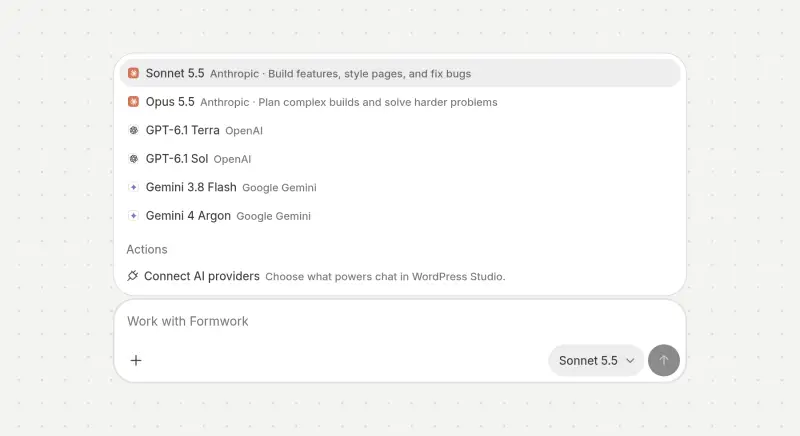
Once a provider is connected, its models appear in the composer, next to where you type. You can choose a model when you open a chat and switch the next time the job changes. That matters more than it sounds. A heavyweight model makes sense when you're redesigning a whole site, where the agent has to hold a lot of structure in mind. A faster model is usually enough for a header tweak or a new page with known content. Matching the model to the task is the same cost-and-speed trade-off you already make with other AI tools, now applied inside your site builder.
Here's the thing that stands out: the agent behaves the same way regardless of model. What it produces is still a real WordPress site, and you can open it in the WordPress Site Editor and keep working by hand. You aren't locked into a generated export or a proprietary format, and that's the detail that matters most if a site needs to outlive the chat that built it.
Bring an agent you already use
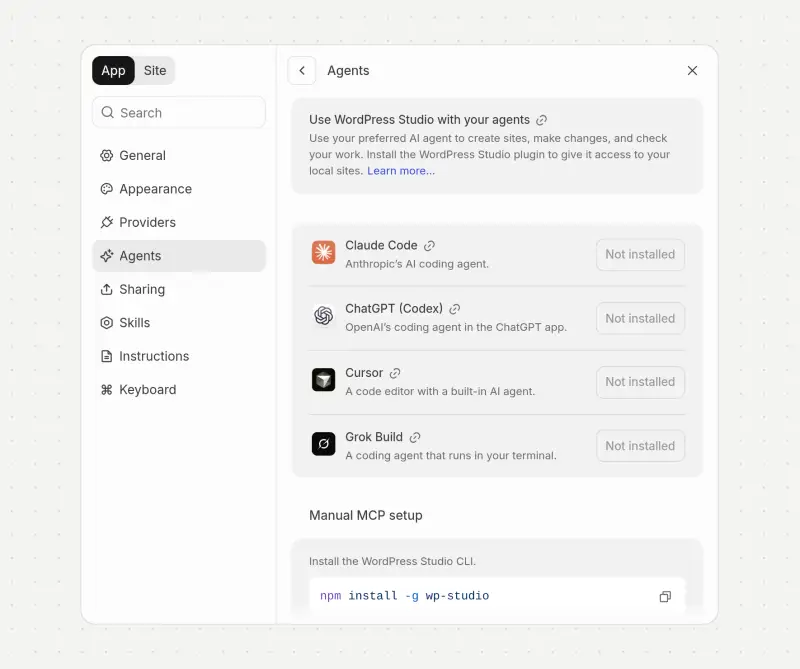
Plenty of developers already build with Claude Code, ChatGPT (Codex), Cursor or Grok Build, and Studio doesn't ask you to give those up. A new Settings → Agents panel shows which of them are installed and links to the agent plugin that gives your agent access to your sites in WordPress Studio.
With that plugin in place, an external agent can create sites, make changes and check its own work. It uses the same tools as Studio's built-in agent, so the results should be comparable whichever agent you pick. For a developer who already has a tuned workflow in Cursor or Claude Code, that's the more useful route, because the agent keeps its existing setup and simply gains access to local WordPress sites.
If your agent isn't on the list, you can set up manual MCP from the same panel. Install the WordPress Studio CLI with npm install -g wp-studio, then add the studio mcp configuration to the app. MCP, the Model Context Protocol, is becoming the common way agents reach external tools, so this is the path to use for any agent that Studio doesn't list by name.
What to check before you roll it out
If you manage this for a team or client work, a few things deserve attention before the first chat. Decide which provider should be the default, since that's what new chats will use. Confirm who owns each connected account, because that determines who sees the usage. If you're using GitHub Copilot, check that your plan actually includes the models you expect, given that availability varies. And test the workflow on a local site first. Studio builds real WordPress sites, so a change made by an agent should go through the same review you'd give a manual edit before it touches production.
My read is that this release moves Studio from a bundled AI feature toward a neutral front end. You bring the model, the account and the agent. Studio supplies the local WordPress environment and the tools that let any agent work inside it. That's a sensible split, and it puts the cost and governance decisions back with the people who already manage those subscriptions.
Download WordPress Studio from developer.wordpress.com/studio, connect the AI you already use, and try one real change on a test site. That's the quickest way to find out which model and which agent fit your work.