Putting WordPress.com Site Checks on a Schedule with ChatGPT and Claude
- Alexa Peduzzi
- 791 views
WordPress.com sites can now run recurring checks through ChatGPT or Claude. Here's how the five starter tasks work and where the guardrails sit.
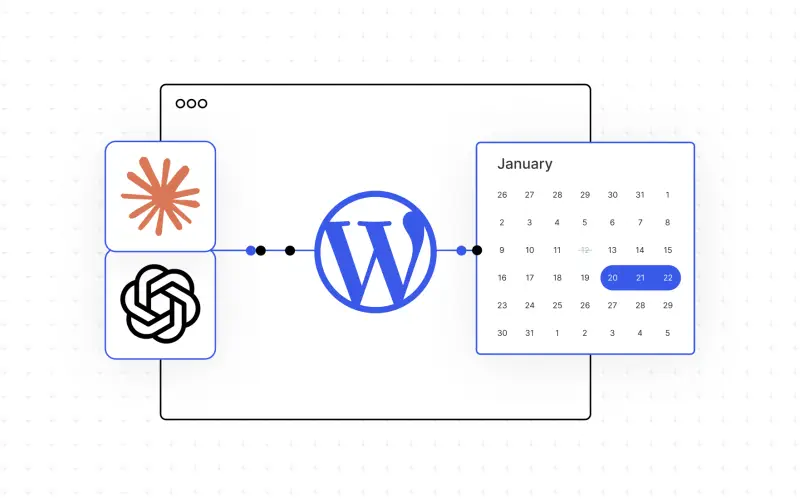
Most site maintenance isn't hard. It's just easy to forget. Checking traffic, sorting comments and spotting a broken plugin each take minutes, but they only get done when someone remembers. Scheduled tasks shift that memory burden to an AI agent. You connect a WordPress.com site to ChatGPT or Claude, describe a recurring job once, and the assistant runs it on the cadence you set.
For administrators who look after a handful of client sites, the appeal is obvious. For a solo blogger, it's a way to stop losing a month of stats. Either way, the useful question isn't whether the feature works. It's what you let it touch, and how you tune it so the output is worth reading.
What's actually running the task
Scheduled tasks run through WordPress.com's MCP server, the same server that powers the WordPress ChatGPT plugin and the Claude connector. The tasks execute inside your AI platform, which has a practical consequence: what you can schedule depends on your ChatGPT or Claude plan, not only on your WordPress.com plan. Approval behaviour also follows your AI settings, so a task that asks before acting in one setup may behave differently in another.
Setup is a couple of clicks through the connection links for ChatGPT and Claude. If you manage several sites, one task can cover all of them in a single run, which is where this starts to save real time.
Five starter tasks, and what each one is for
The five starter tasks are deliberately read-only. None of them alter your site as written. Each comes with a prompt, and each prompt has a "Try in" link that opens ChatGPT or Claude with the request pre-filled. You can also paste the prompt in yourself. Treat the first run as a test, check the output against what you know about the site, and adjust the wording before you rely on it.
A morning triage check. The prompt asks the assistant to review every WordPress site each morning, rank anything urgent, and explain why it matters, with instructions not to change anything. This is the most useful one for agencies. Your first task of the day becomes a prioritised list, not a dashboard you have to open and interpret.
A monthly traffic comparison. On the first of each month, the task pulls views and visitors for the last month and the month before, puts them in a table with numerical and percentage changes, and flags anything that stands out. The table format matters. A trend you can see in one glance is far more likely to get acted on than a paragraph of figures.
A Monday housekeeping sweep. This one checks available site health information, active plugins, storage usage, unpublished drafts and comments awaiting moderation, then returns a prioritised list of issues and tasks. It covers the chores that tend to pile up quietly, such as stale drafts and a moderation queue nobody has opened since the last quarter.
A weekly set of post ideas. Each Friday, the task looks at the most-viewed posts from the last 30 days, checks your published posts and drafts so it doesn't suggest topics you've already covered, and proposes three new ideas with a one-line reason for each. The duplicate check is the detail that makes it usable. Without it, you get ideas you've already written.
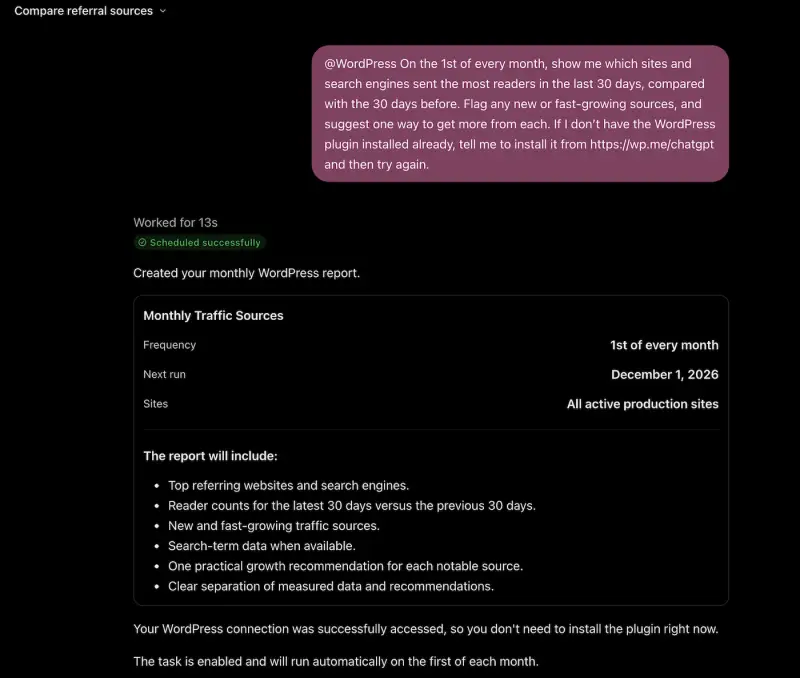
A monthly look at traffic sources. On the first of the month, the task compares the last 30 days of referrers, both sites and search engines, against the 30 days before. It flags new or fast-growing sources and suggests one way to get more from each. This is the task to run if you want to spot a referral source growing before anyone else notices it.
Writing a prompt that earns its place
The five starters share a structure: what to check, when to check it, and what to send back. That's a good template for your own tasks. My suggestion is to follow four habits:
- Start with a read-only report. Ask for a draft or a summary first. Once the output is reliable, you can decide what, if anything, should be handed over.
- Specify the format. A table, a short bullet list and a three-sentence summary each serve different readers. Say which one you want.
- Name the scope. "Each of my sites" and "the blog on example site X" produce very different runs. Be explicit so the assistant doesn't guess.
- Review the first few runs closely. Early output tells you whether the thresholds, the wording and the sources are right. Tweak accordingly.
Keeping control of what changes
You decide what your AI can do on each site. The settings page lets you control which WordPress.com tools the assistant can use and whether it asks permission before taking action. For anything that touches live content, keep that approval step on until you've seen enough output to trust the task.
Recovery is the other half of the picture. Backups and the activity log are available on eligible plans, and the log records each change an agent makes, so you can review what happened after the fact. Check your plan's eligibility before you hand over any write access, not after.
If you use a different AI tool, the same MCP route is documented separately in WordPress.com's MCP guide.
Where to start
My read is that the best first task is the one you forget most often, not the most impressive one. For many people that's the monthly traffic check or the Monday sweep. Connect a site, run a read-only task for a few weeks, and see which jobs you stop thinking about. Those are the ones worth handing over next.