SharePoint App Bar Adds Discover, Publish and Build Tools
- Gregory Zelfond
- 942 views
SharePoint’s refreshed App Bar brings discovery, publishing and creation tools into one panel. Check home site setup and Microsoft 365 licensing.
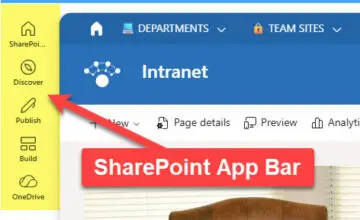
SharePoint’s refreshed App Bar shifts the left-side panel from shortcuts to recently used content toward three practical tasks: finding information, publishing pages and news, and creating SharePoint resources. For administrators, the key checks are whether users have a Microsoft 365 license and whether the organization has configured a SharePoint home site with global navigation.
The App Bar appears along the left edge of SharePoint sites, outside the site page itself. Its earlier version offered Home, My Sites, My News and My Files. In the 2026 refresh, Discover brings together sites, news and recent files, while Publish and Build add starting points for content work and site resources. OneDrive remains available as a shortcut.
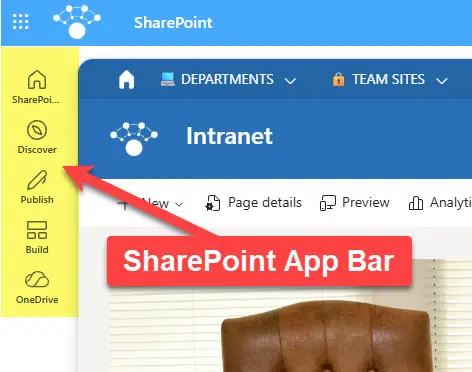
Home depends on home site configuration
The Home icon appears only when an organization has a SharePoint home site with global navigation enabled. Its label and logo use the settings configured for that navigation, and selecting it opens the organization’s shared navigation links. If the icon is missing, the first thing to check is whether a home site and global navigation have been set up.
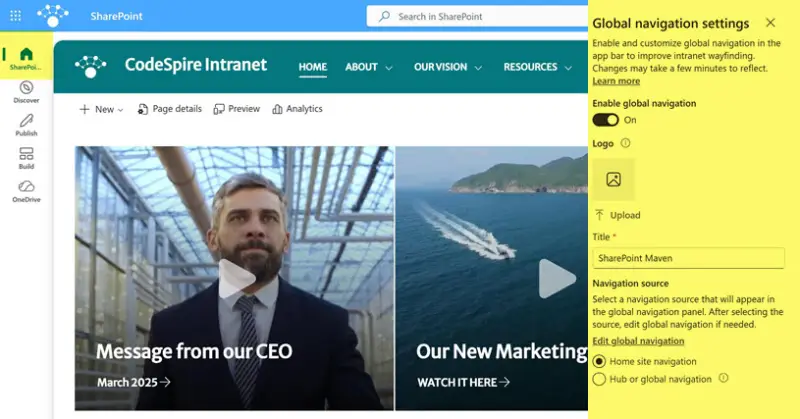
The Home icon appears when a home site and global navigation are configured.
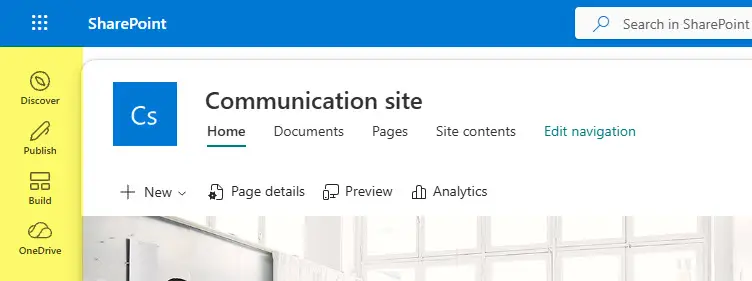
Without that setup, the App Bar appears without the Home icon.
This makes Home different from the other App Bar entries: it reflects an organization-level configuration, rather than simply opening a personal view. Teams planning a SharePoint navigation change should account for that dependency when explaining what users will see.
Discover combines familiar destinations
Discover replaces the earlier My Sites, My News and My Files entries with a single destination. It surfaces sites a user follows or visits often, news from across the organization, and recent files. The page has Overview, Sites, News, People, Favorites and Recent sections in its left navigation.
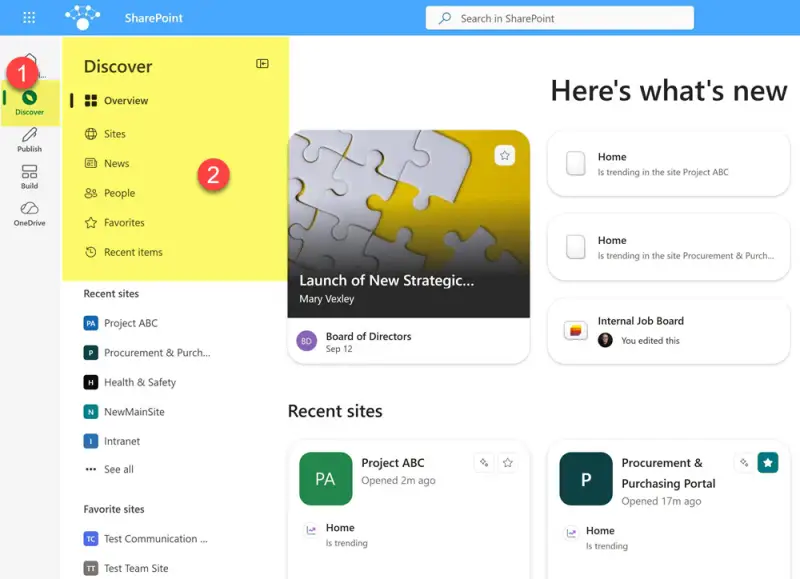
For users, that consolidation means there are fewer separate App Bar destinations to learn. For support teams, it changes where to direct people looking for followed sites, organizational news or recently handled files. Discover acts as a compact entry point to these items; the listed sections give users several ways to narrow down what they need.
Publish starts content work centrally
Publish is a new App Bar option for creating and distributing SharePoint content, including news posts and pages. It is powered by Viva Amplify behind the scenes. Instead of first opening a particular site and choosing + New > News post, users can begin at Publish and select where and how to publish.
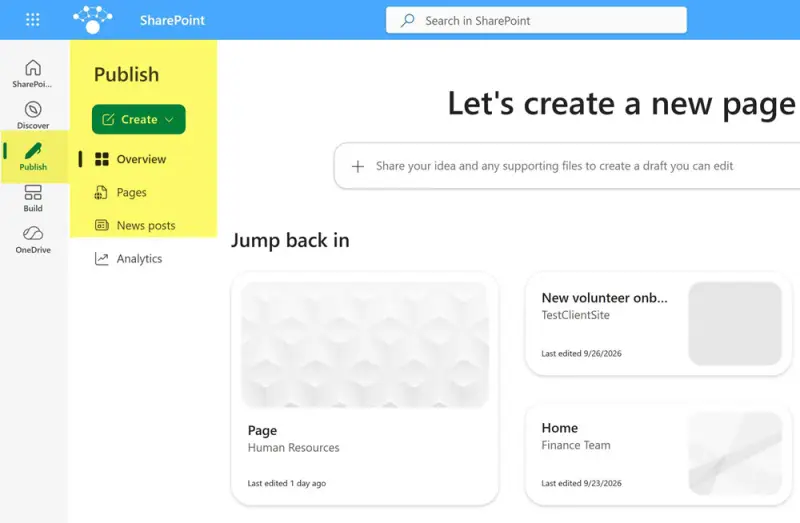
The central entry point may make content creation easier to find, particularly for staff who contribute to more than one site. It also makes the publishing destination an explicit choice at the start of the process. Administrators and site owners can use that change as a prompt to remind contributors to check the intended destination before distributing a page or news post.
Build brings common creation tasks together
Build provides entry points for creating sites, lists, document libraries and agents. Those options are grouped in one place in the App Bar, giving users a direct route to common SharePoint creation tasks instead of requiring them to navigate to a particular site first.
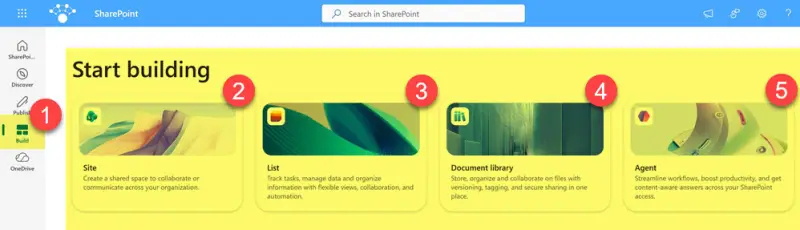
That visibility can reduce the effort involved in showing users where to start when they need a list or library. It also makes the range of things users can create more apparent. Teams that guide staff through SharePoint workflows should update their instructions to point to Build when it fits the task.
OneDrive remains a quick file route
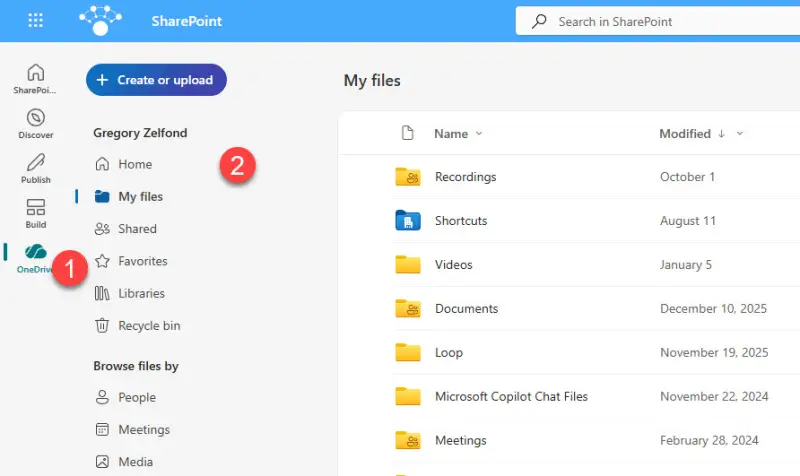
The OneDrive option opens a user’s files without requiring them to leave SharePoint for a separate browser tab. It serves as a direct shortcut alongside the broader Discover, Publish and Build functions.
What administrators should check
The App Bar is available to users with a Microsoft 365 license. Its only customization described here is the Home icon, which is controlled through Viva Connections and the home site’s global navigation setup. Organizations can review their home site configuration and confirm which users have the required license when troubleshooting differences in what people see.
For administrators, the refresh is also a reason to revisit help materials and user guidance. References to My Sites, My News or My Files may no longer match the new layout; Discover is now the entry point for those kinds of destinations. Guidance on creating news, pages, sites, lists and libraries should likewise reflect Publish and Build. The practical takeaway is to check the license and home site setup, then orient users around the new task-based sections.